
If a student has mistakenly submitted an assignment within Aportfolio, you will need to go in and clear the student’s assignment.
A student cannot resubmit an assignment until the older one has been cleared. The tutorial below shows you how to clear a submission for an assignment.
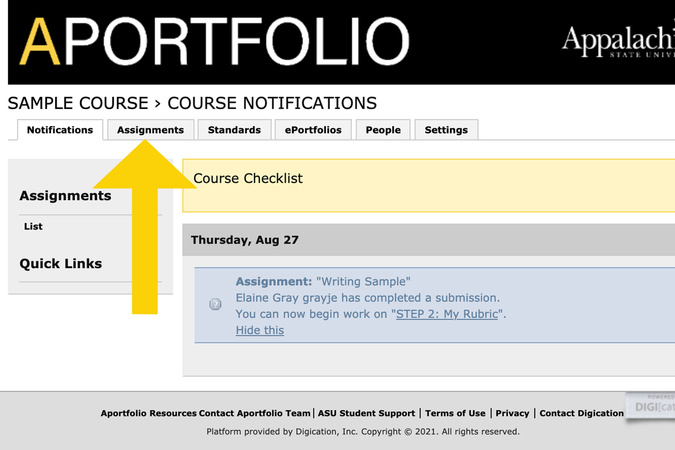
Step 1
To begin, select the Assignments tab within your course.
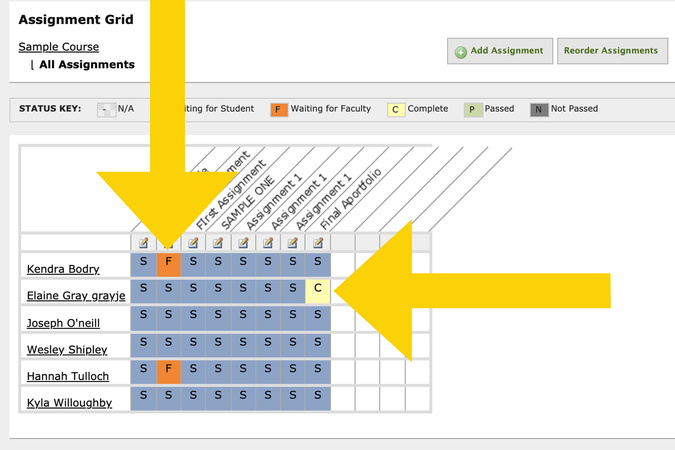
Step 2
Find the student’s name. You will see a yellow C, for the assignment, unless you have added additional steps. If you have added additional steps, the box may be an orange F, instead.
Once you have located the assignment for the student that needs to be cleared, click on the yellow C or orange F box.
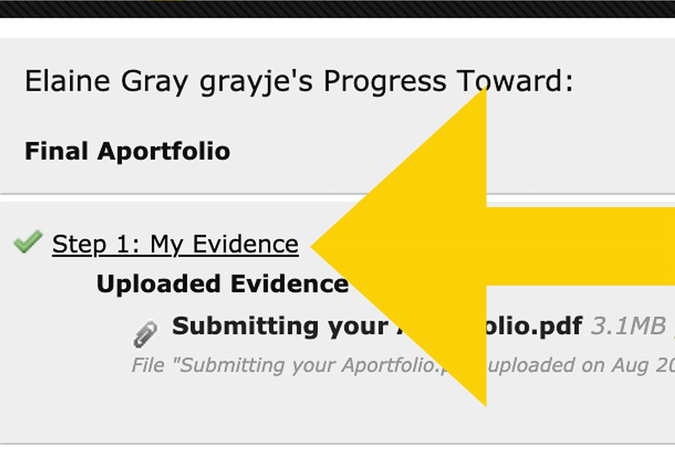
Step 3
Next, click on the step in which you wish to clear the submission.
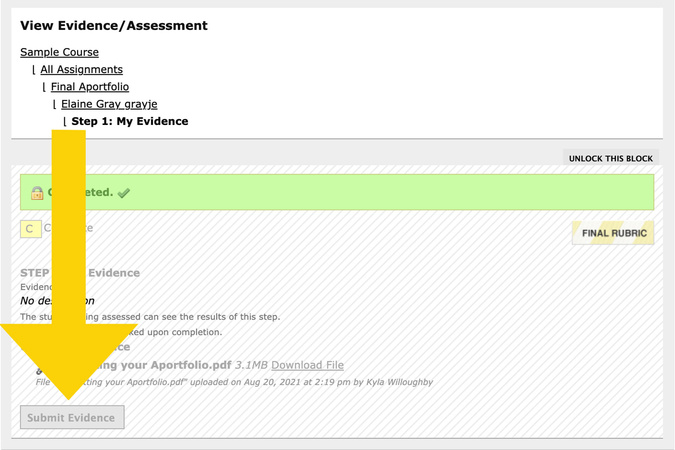
Step 4
At the bottom of the page, click on the gray Submit Evidence button. This will take you into the student’s submission for that assignment.
If there is only one step in the assignment, the Submit Evidence button will be grayed out, as shown. The button is still clickable.
Step 5
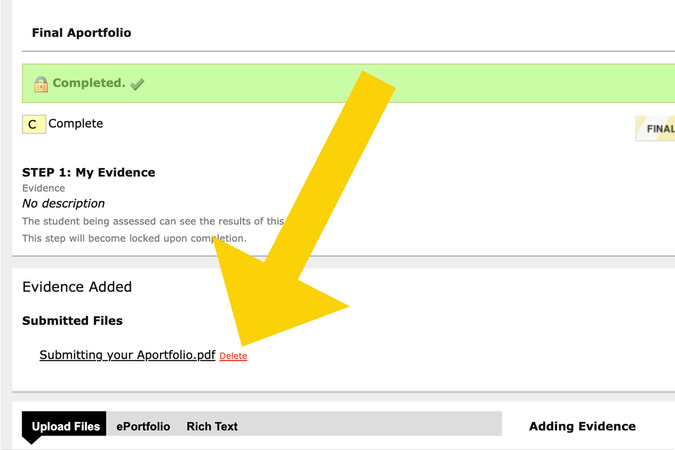
In the Evidence Added section, you can see what the student has submitted. If more than one portfolio is submitted, all submissions will need to be deleted.
To delete, click the red Delete beside the assignment(s).
Step 6
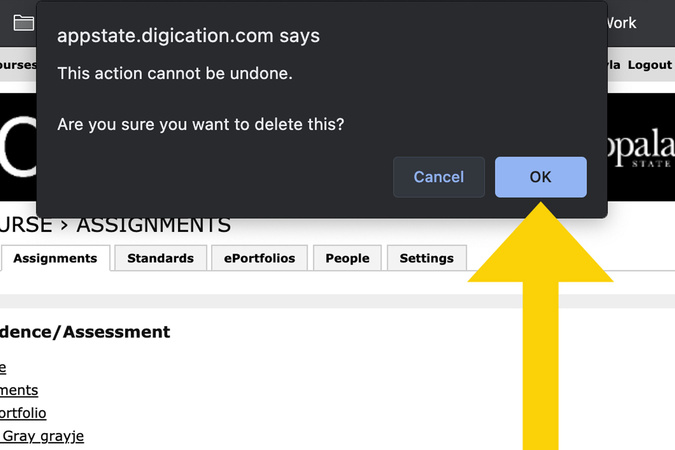
After clicking Delete, a pop-up box will appear asking if you are sure you want to delete the submission. Click the OK.
Once you have deleted a submission, the Evidence Added section will be blank, no longer displaying any submissions.
Step 7
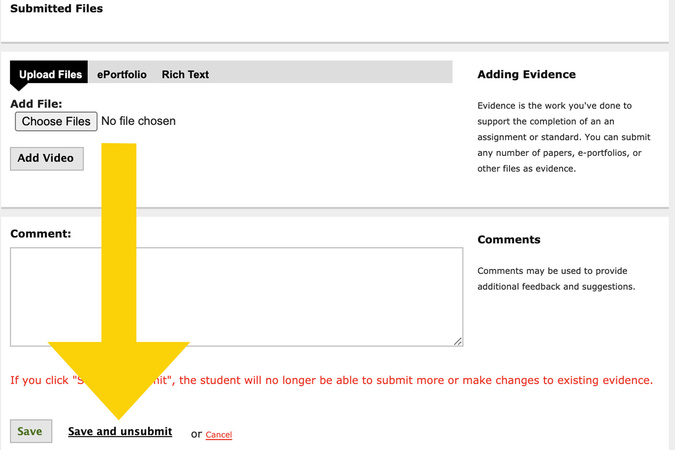
Once you have deleted the submission(s), scroll down to the bottom of the page. You will see a Save and unsubmit button; be sure to click it instead of just clicking Save.
Again, do not click the green Save button.
Step 8
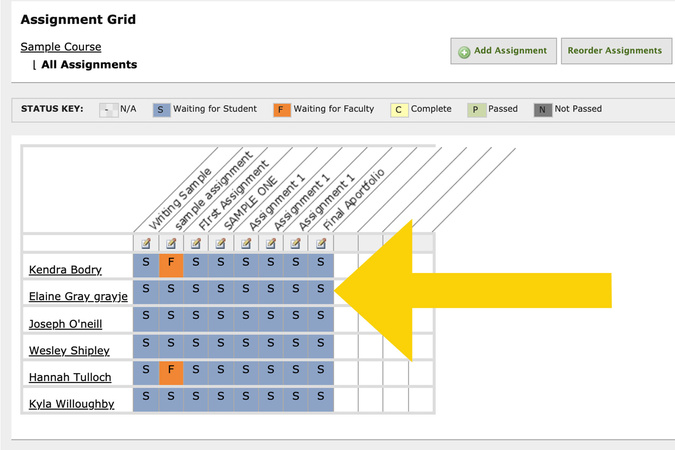
You will see that the box is now blue, indicating it is waiting for a student submission. The student should now be able to resubmit the correct assignment.

Digication Login
Creating a well designed portfolio is a must. Use Digication to log in to Aportfolio and manage your ePortfolio. Alumni may sign in at appstate.digication.com.