
The following tutorial explains how to view student submissions in assignments for Aportfolio.
Step 1
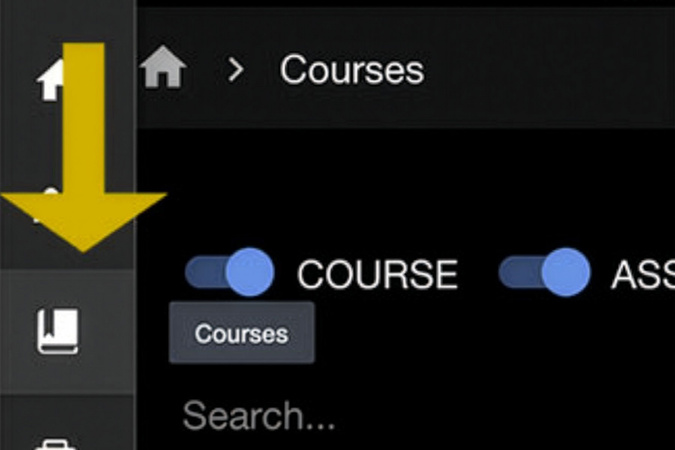
Once you have logged into Aportfolio, select Courses on the left side of the page.
Step 2
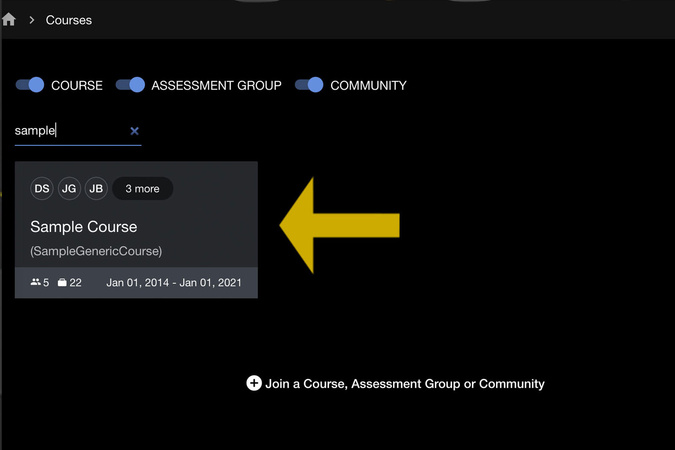
Select the course in which you want to begin viewing assignments.
Step 3
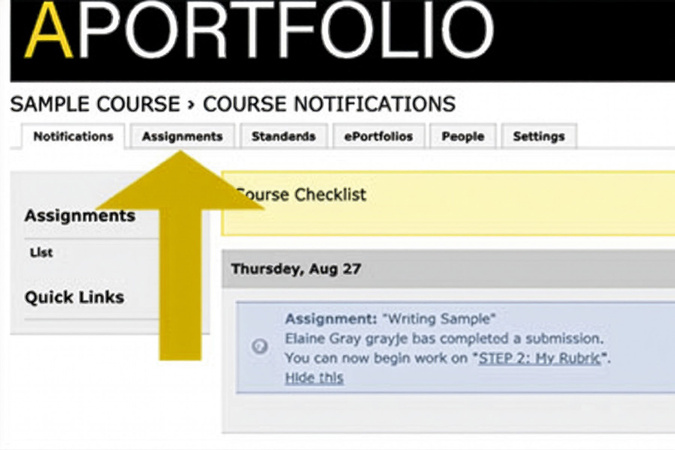
Once in the course, select the Assignments tab.
Step 4
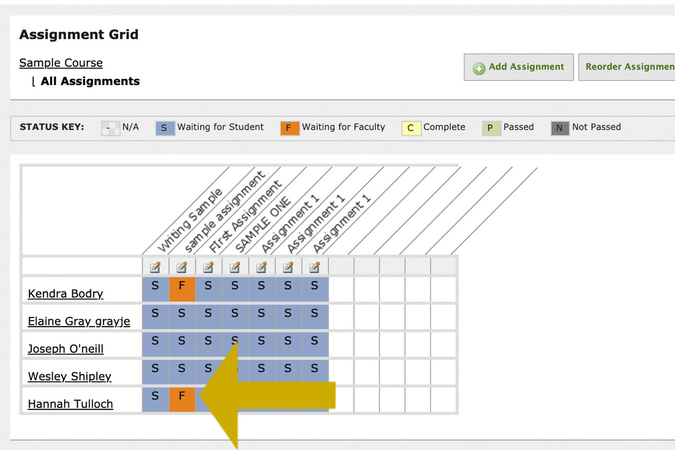
Here, you can see all students and assignments in the course.
Assignments with an orange F, indicate that the assignment is ready to be viewed. Click on the orange F.
Note:
- The blue S indicates the assignment is waiting on the student to submit.
- The orange F indicates that the submission is waiting for faculty.
- The yellow C indicates that the assignment has been completed.
- The green P indicates that the student has passed that assignment.
- The dark grey N indicates the student did not pass the assignment.
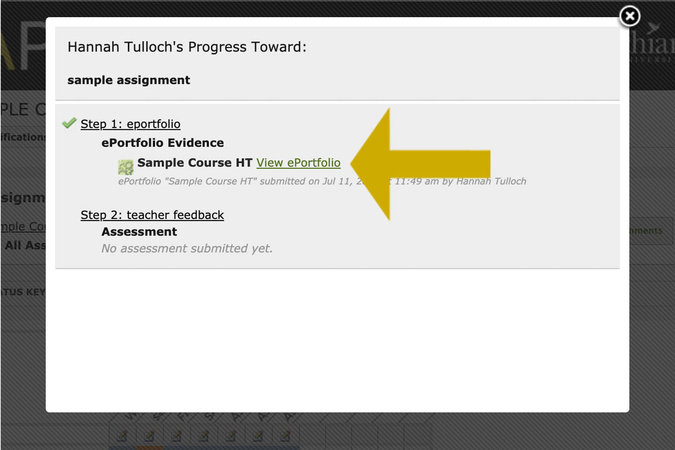
Step 5
Click on View e-Portfolio to view the ePortfolio submitted for that assignment.
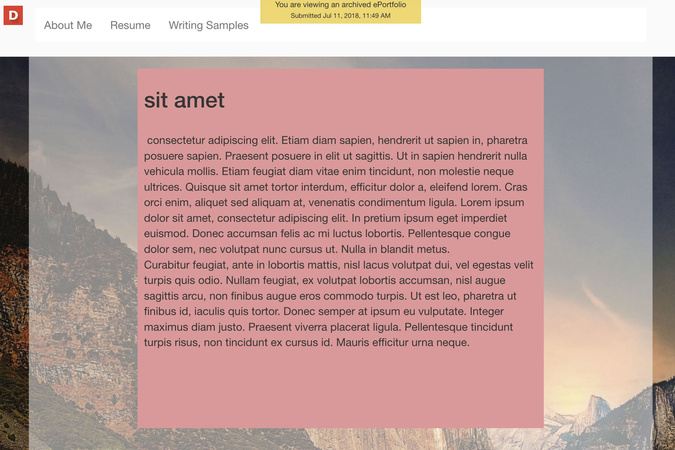
Step 6
This is a time-stamped view of the student’s submission. If a student has made changes since the submission of the assignment, you will not be able to see them.
NOTE: You will only be able to view the ePortfolio if the student has PUBLISHED all pages and assigned the correct PERMISSIONS for your course to be linked to their Aportfolio.

Digication Login
Creating a well designed portfolio is a must. Use Digication to log in to Aportfolio and manage your ePortfolio. Alumni may sign in at appstate.digication.com.