
Your professor may require you to submit your Aportfolio. If so, follow these directions.
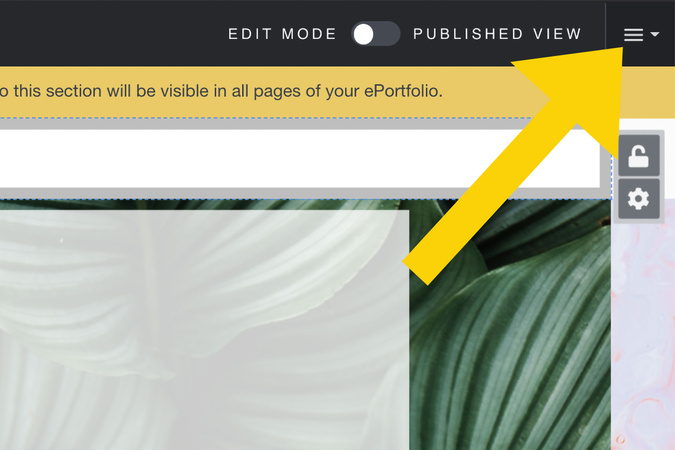
Step 1
The submit option is found under the settings menu within your eportfolio.
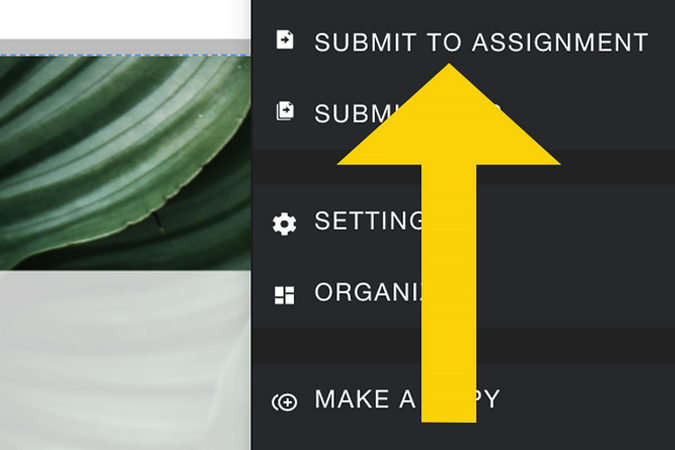
Step 2
Click Submit to Assignment. You will also notice a "Submissions" option. This will allow you to view any other submissions you’ve made with this eportfolio in the past.
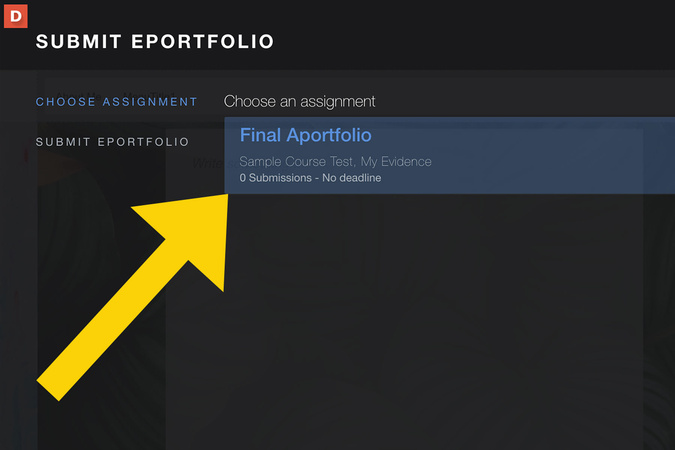
Step 3
Next, you will select an assignment to which you will submit your eportfolio. You can see the title of the assignment and the title of the course beneath it. Please make sure you are selecting the correct assignment.
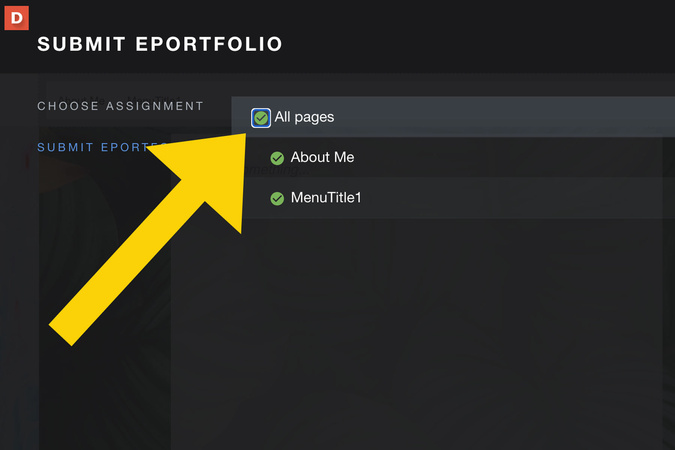
Step 4
You will need to select the page(s) to submit according to your instructor’s directions. Make sure there is a green check mark by all the pages you want your instructor to view.
Step 5
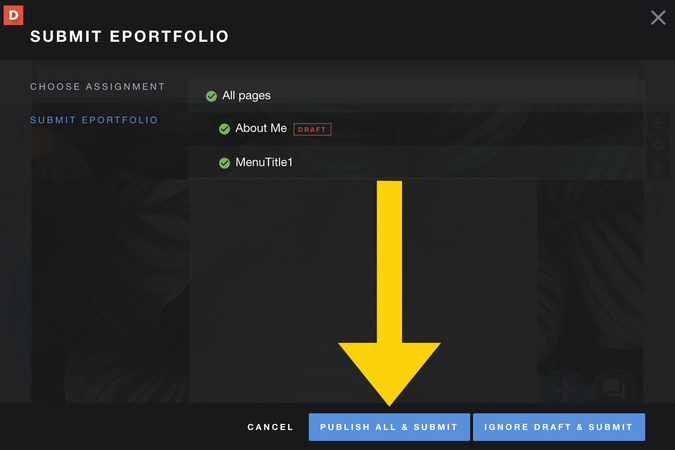
If you see the red drafts icon next to one of your pages, it means the page has not been published, and your instructor will not be able to view its content. You can remedy this by clicking on the publish and submit option.
Step 6
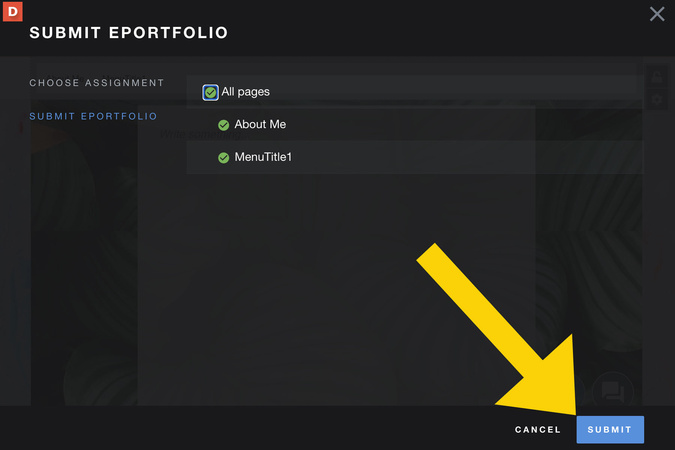
If all of the pages you are submitting have been published, you will simply see a submit button.
Step 7
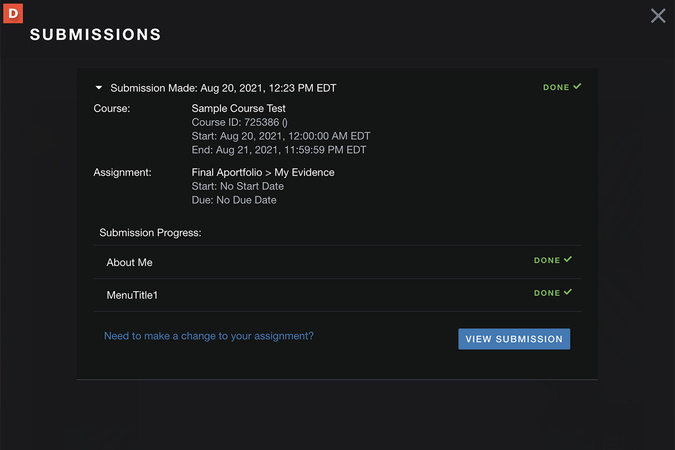
Once you submit, you will see this screen. It shows you where and when you submitted your eportfolio, as well as the pages you submitted.
If you prematurely submit an Aportfolio or submit to an assignment in error, contact us at Aportfolio@appstate.edu.

Digication Login
Creating a well designed portfolio is a must. Use Digication to log in to Aportfolio and manage your ePortfolio. Alumni may sign in at appstate.digication.com.