
You may want to make your eportfolio public to share with potential employers, graduate school applications, or internship directors. To make your eportfolio public, follow these steps.
WARNING - DO NOT include personal information like phone numbers or addresses in your Aportfolios when you make your portfolio public. Add a password to your portfolio so only people you give a password to will see your Aportfolio. Also, remove photos that peers won't want public.
You must first formally request public permissions for your Aportfolio.

Step 1
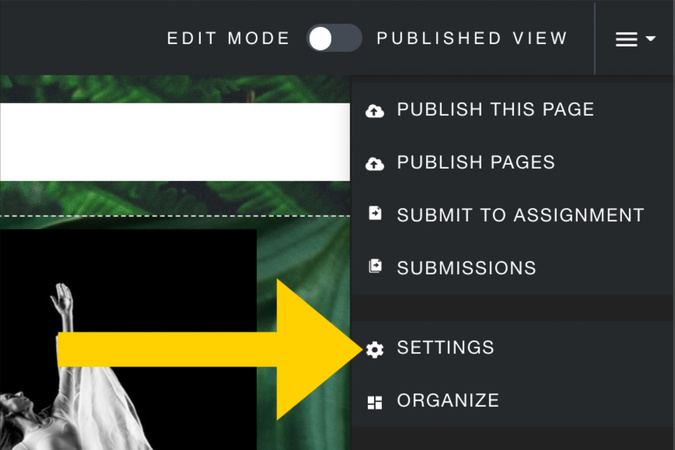
Once you have completed the online request for public permissions and received a reply from the Aportfolio office, then click on the Settings menu in the top right corner of your Aportfolio
Step 2
Select “Settings”
Step 3
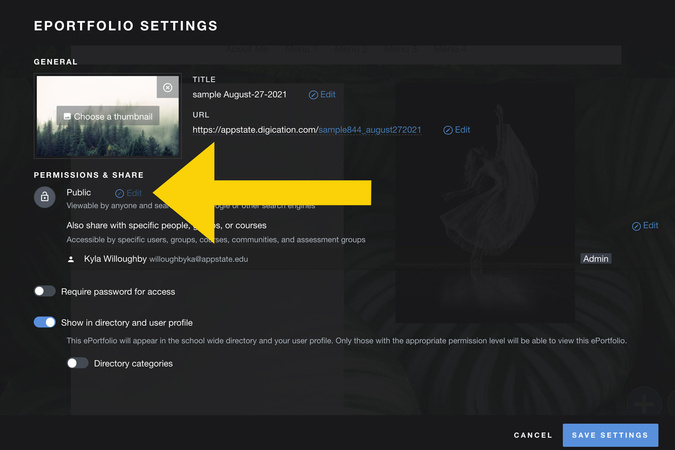
Next to Public, click on “Edit.”
Step 4
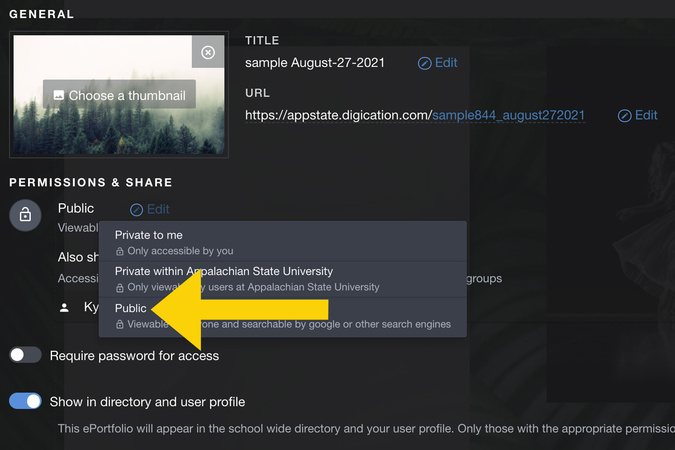
Select “Public”
Step 5
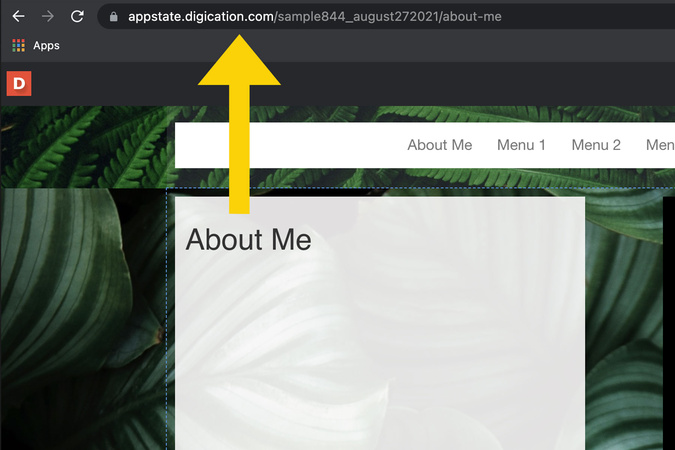
To share your eportfolio, highlight the URL at the top of your settings page and paste it into an email. Note: Some graduate school applications have an optional space to paste your eportfolio URL.
Step 6
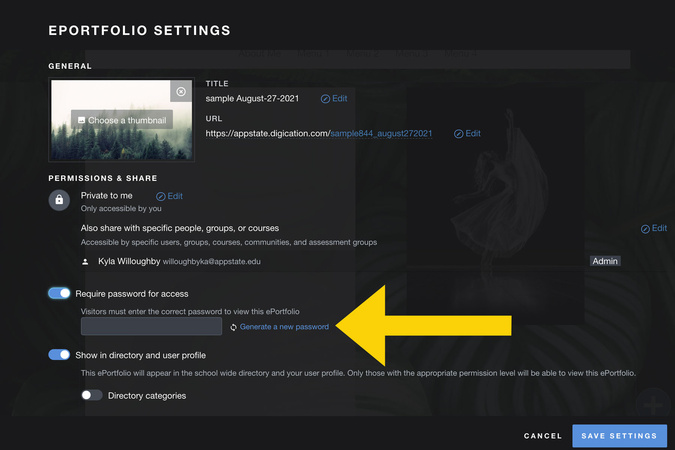
Add a password here. Share the URL and Password for your Aportfolio with your viewers. This added security step protects your identity and your intellectual property.
Step 7
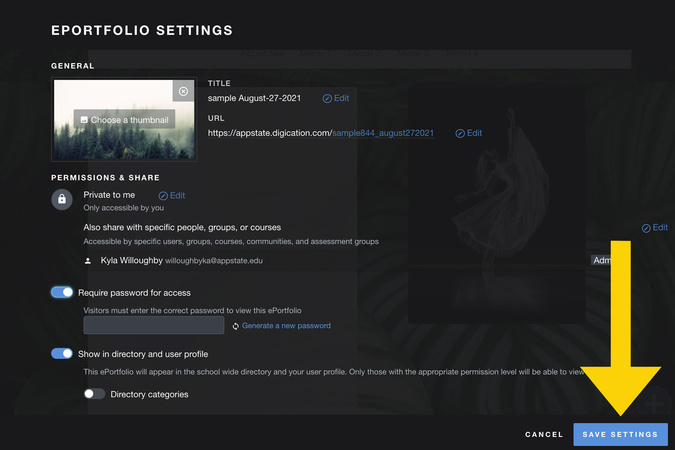
Click on “Save Settings”

Digication Login
Creating a well designed portfolio is a must. Use Digication to log in to Aportfolio and manage your ePortfolio. Alumni may sign in at appstate.digication.com.