
If you would like to edit the font, color, or background of your text, follow the directions below.
Step 1
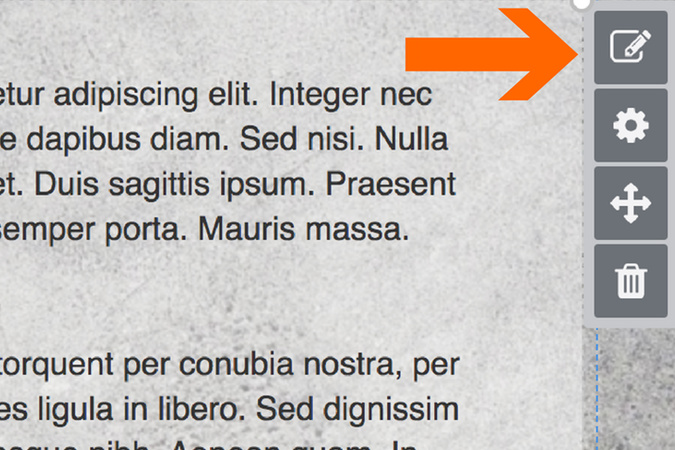
To edit any of your content, hover over the content you would like to edit. Then click the edit icon.
*When editing text, you can type directly into the text box.

Step 2
Clicking the edit button brings up a style box. From left to right, the buttons are:
- Paragraph or header
- Bulleted list
- Numbered list
- Bold
- Italics
- Underline
- Strike through
- Quote format
- Link
- Attachment
- Equation
- Styles for text
- Word count

Step 3
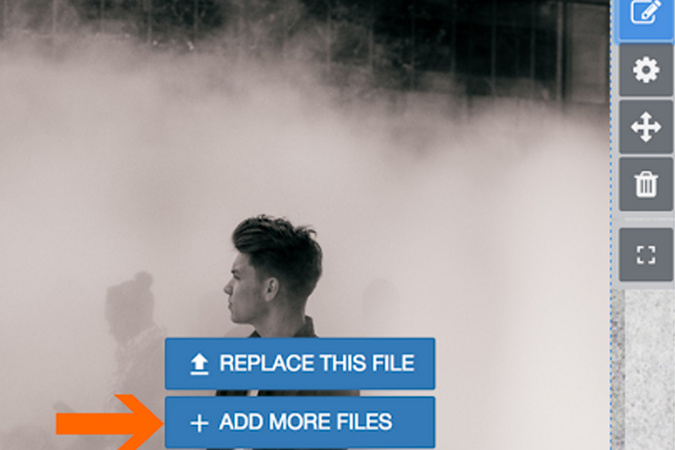
Clicking the edit icon on PDFs, photos, or other content lets you either replace the file or add more files.
Step 4
Clicking add more files will add more photos, creating a photo gallery.
Step 5
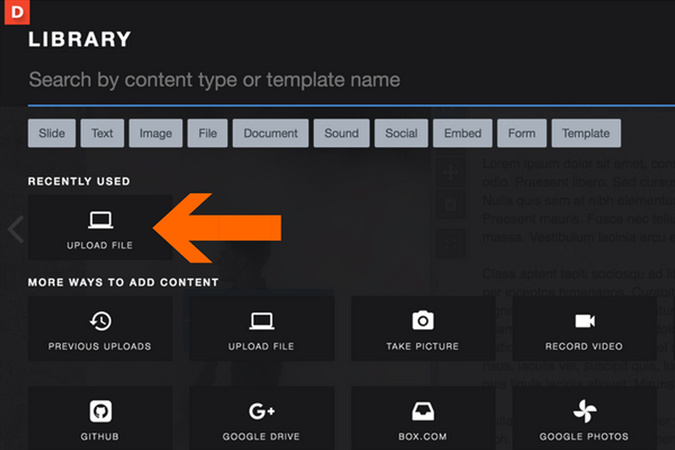
This is the page that appears when you click Add more files. Click the upload file to add additional photos and create a gallery.

Digication Login
Creating a well designed portfolio is a must. Use Digication to log in to Aportfolio and manage your ePortfolio. Alumni may sign in at appstate.digication.com.