
Creating a Shareable Link for Your Videos
Before you can embed a video in your Aporfolio, you must upload your video to your free Appalachian State YouTube account to create a link.
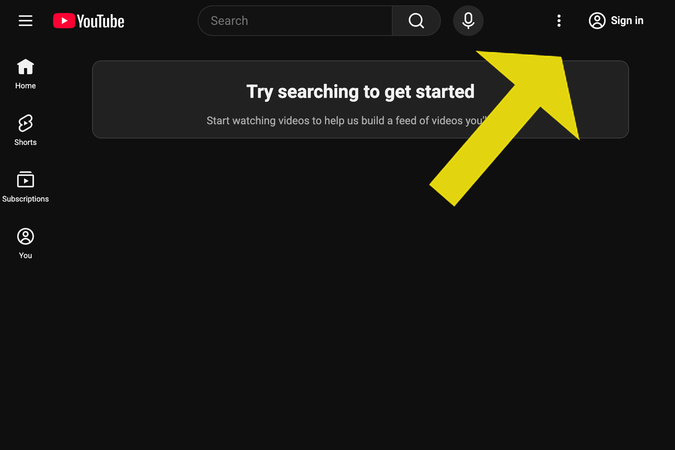
Step 1
Go to YouTube and click on the Sign In button.
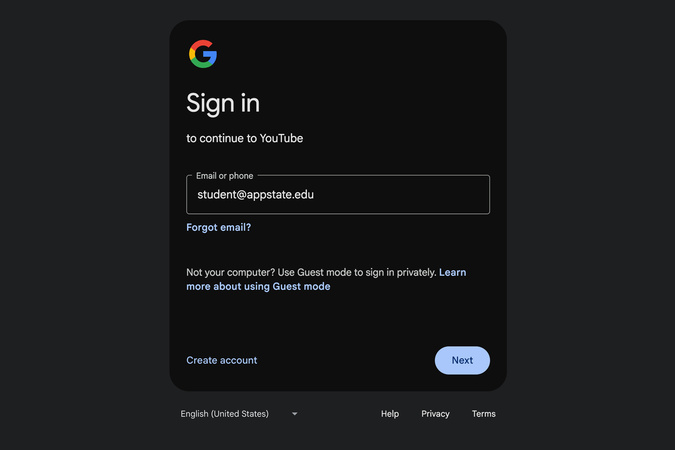
Step 2
Sign in using your Appalachian State email.
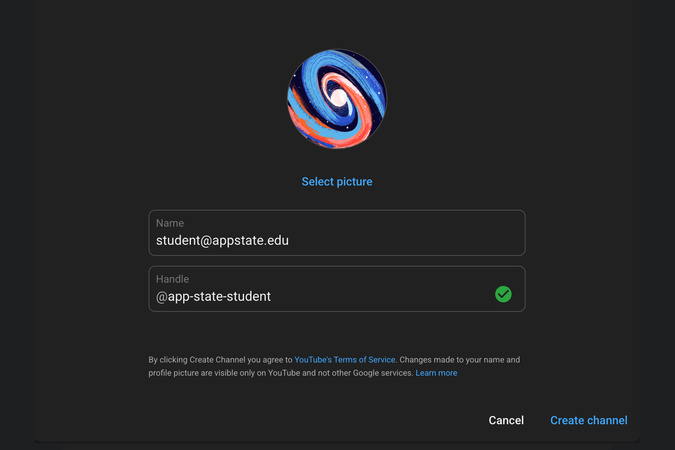
Step 3
Click Create a Channel.

Step 4
Upload your video. When uploading, make sure your video is public.

Step 5
Click the Options button (three vertical dots) after the video has uploaded, then copy the shareable link.
Embedding Your Videos
Once the shareable link has been copied, you can now allow viewers of your Aportfolio to easily watch videos by adding a video embed to your Aportfolio page.

Step 1
To embed your video, click the blue Add Content button in the bottom right-hand corner.
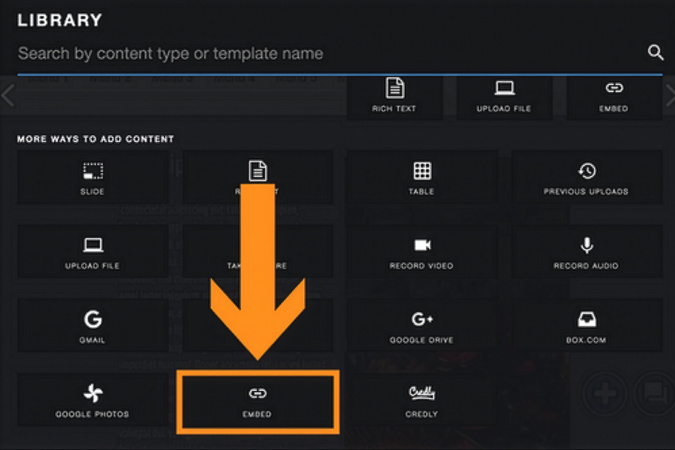
Step 2
Near the bottom of your Library, select the Embed icon.
Step 3
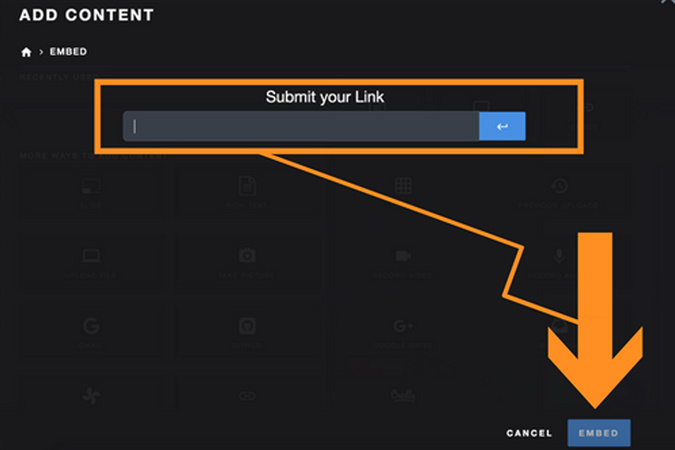
Paste your URL in the appropriate field, then click Embed in the bottom-right corner.
Step 4
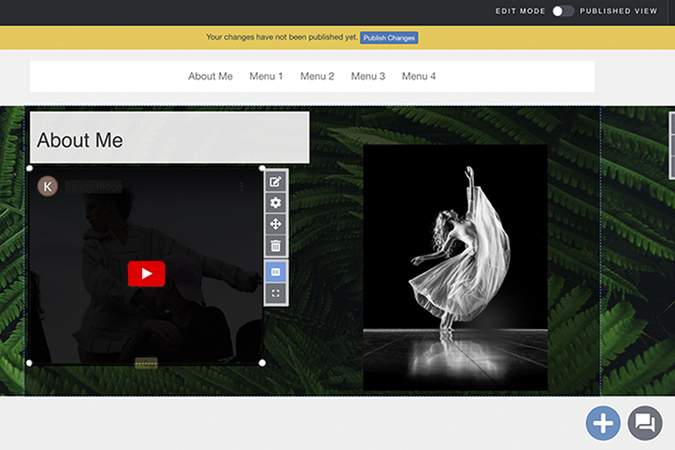
You can now see your video on your Aportfolio!

Digication Login
Creating a well designed portfolio is a must. Use Digication to log in to Aportfolio and manage your ePortfolio. Alumni may sign in at appstate.digication.com.