
Color is great for headings, subheadings, text, or backgrounds in your Aportfolio. Color is one of the first things people notice in your Aportfolio. It can be helpful to choose a color palette before you begin creating your Aportfolio. One way to choose a beautiful color palette is to use Adobe Color.
How to Use Adobe Color Wheel
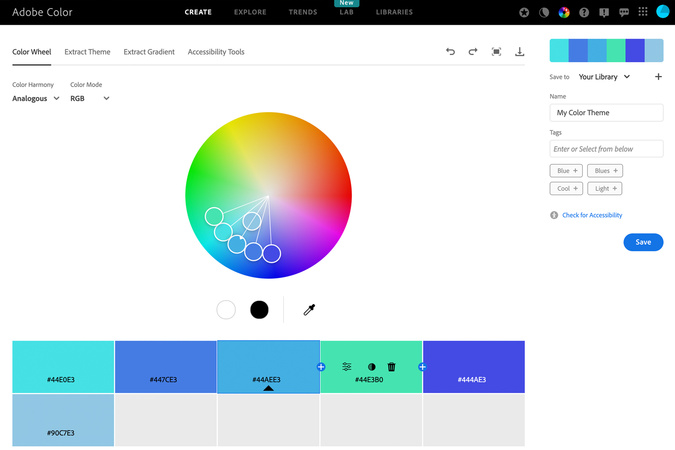
Step 1
To get to Adobe Color, click here.
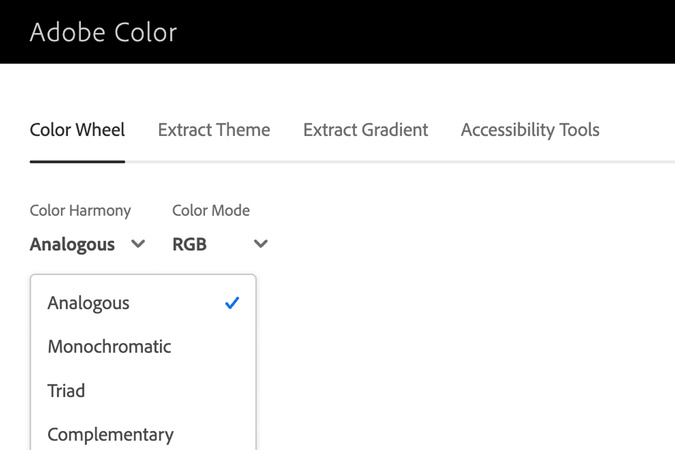
Step 2
Adobe has a wide variety of customizable color harmonies for you to pick from.
- Analogous
- Monochromatic
- Triad
- Complementary
- And so much more!

Step 3
Click your favorite harmony and move the colors around until you find something you like.
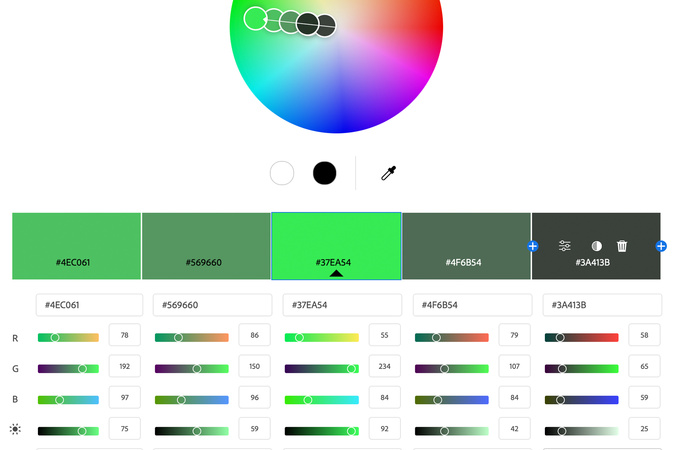
Step 4
To add your colors to your portfolio, click on one color under the color wheel and copy the color’s hex code. Make sure not to copy the hashtag before the hex code. Otherwise, the color won’t show on your portfolio.

Step 5
Go to your portfolio and click the color box you want to change.
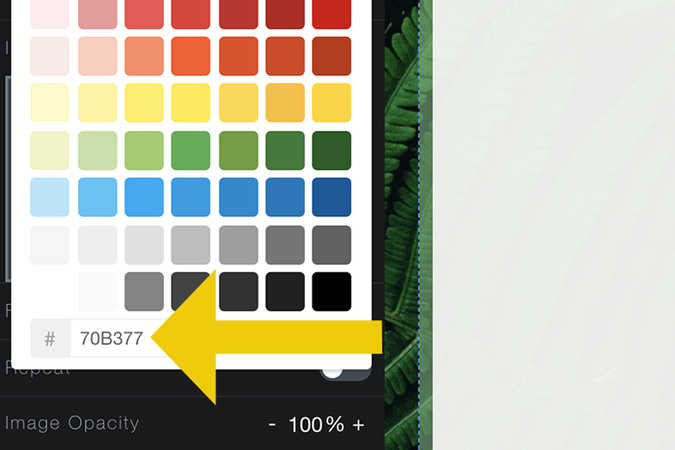
Step 6
Paste the hex code, and the color should automatically change.
Step 7
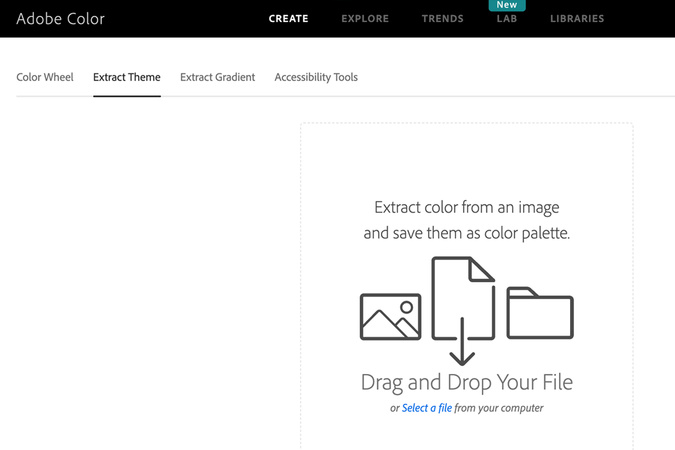
You can also extract color pallets from your own photos! Go back to Adobe Color and click on “Extract Theme” next to the Color Wheel on the top left of your screen.

Step 8
Upload a photo and choose different color palettes from the 6 color mood options.

Step 9
Copy only the numbers from the hex code below the photo, then repeat steps 5 and 6 to paste the code into your aportfolio. You may also try messing with the “best fit” and “full image” options as well.

Digication Login
Creating a well designed portfolio is a must. Use Digication to log in to Aportfolio and manage your ePortfolio. Alumni may sign in at appstate.digication.com.