
Here are the basics for designing and organizing your Aportfolio.
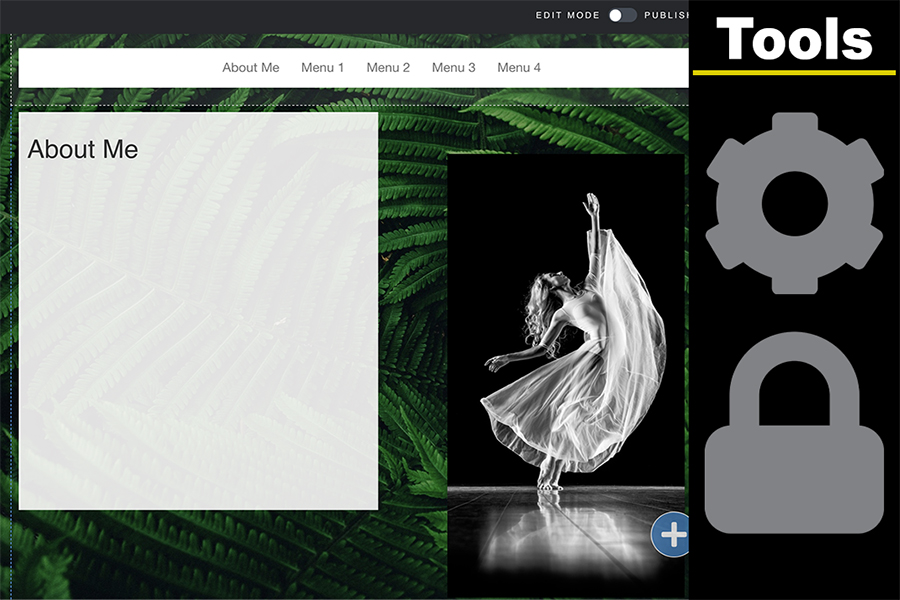
Seamless Background
This tutorial will show you on how to make the background of your Aportfolio connect as one seamless image from top to bottom.
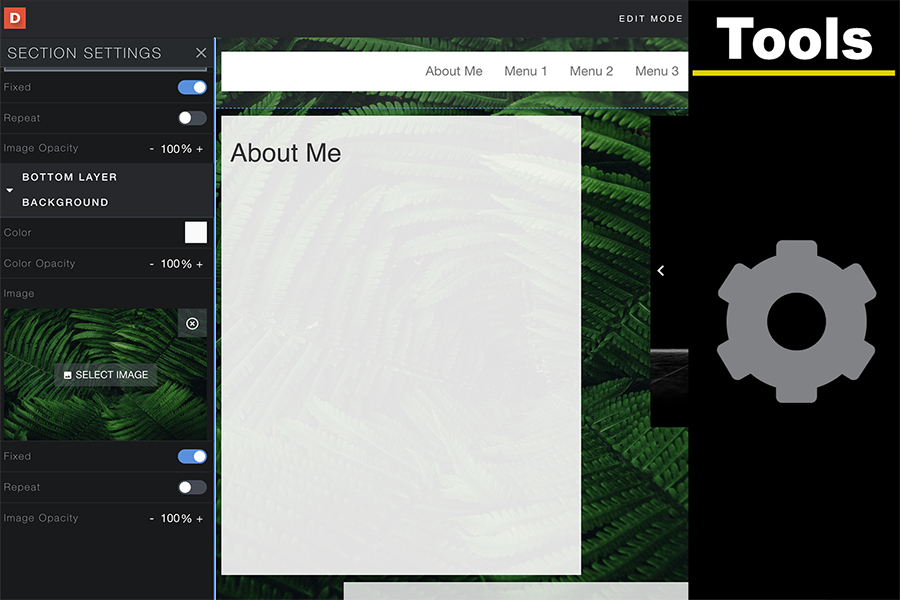
Parallax Scrolling
This tutorial instructs you on how to create backgrounds that feature parallax scrolling. View Parallax Scrolling Video Tutorial
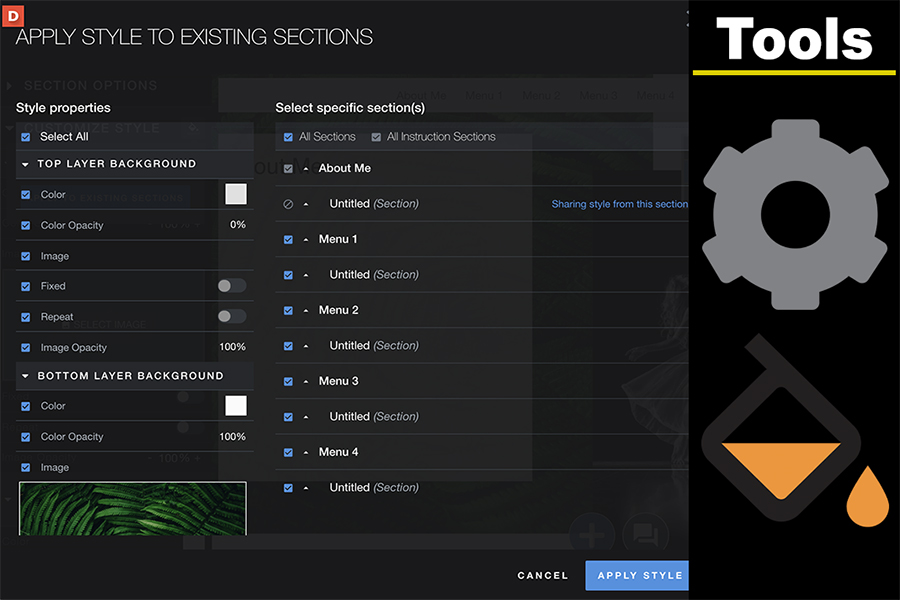
Applying/Copying Site-Wide Styles Tutorial
The Apply Styles feature allows you to easily apply your chosen style settings to slides and/or modules. For example, if you want a specific font type or background image the Apply Styles feature allow you to change font and/backgrounds on all pages for a consistent look and feel.
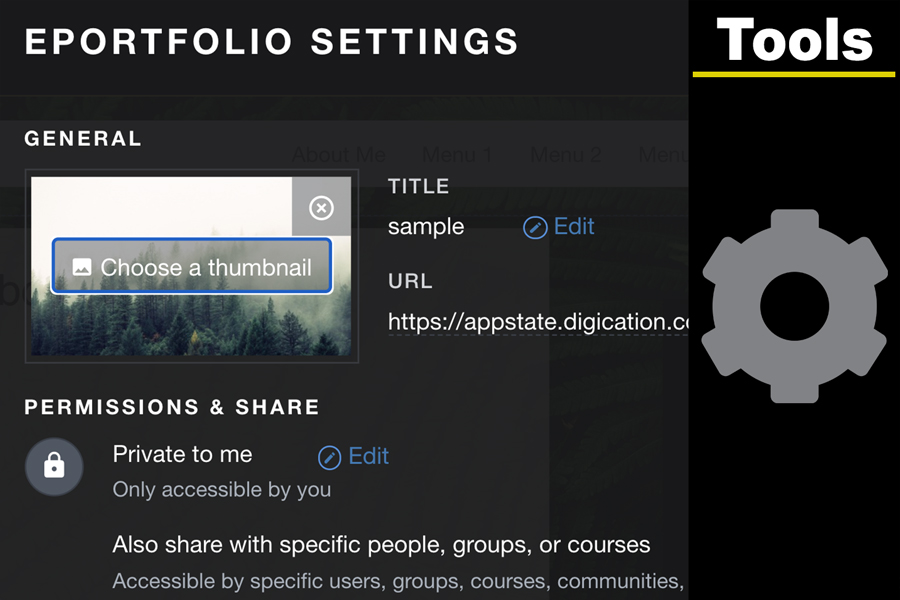
Editing the Directory Icon
The directory icon is the small picture to the left of your Aportfolio link. If left unchanged, it looks like small green gears. This tutorial demonstrates how to add your personal picture to the directory icon. Play Editing your Directory Icon Video Tutorial
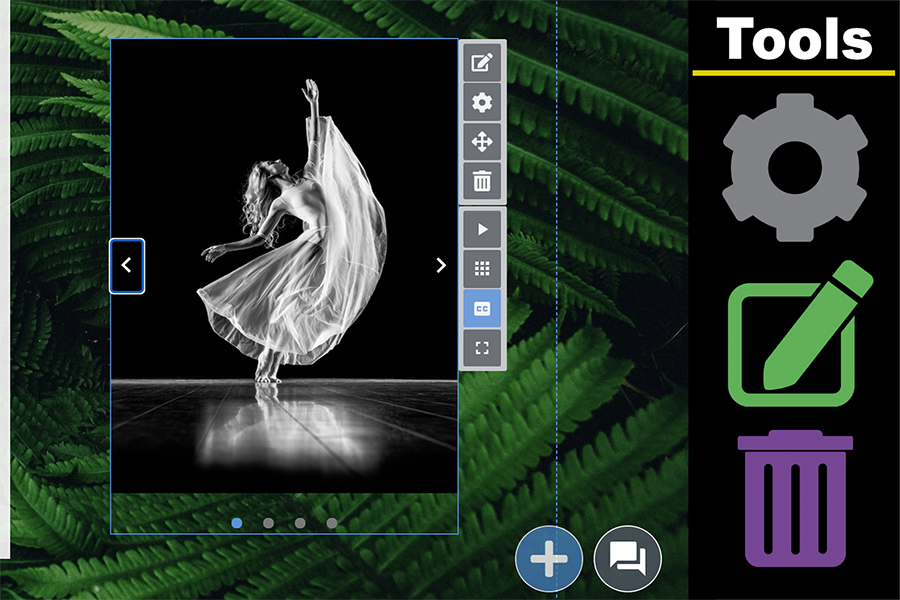
Image Gallery Overview
This tutorial covers the basics of creating and editing a gallery. Galleries can contain photos, graphics, PDFs, videos, and more. Play Image Overview Tutorial Video
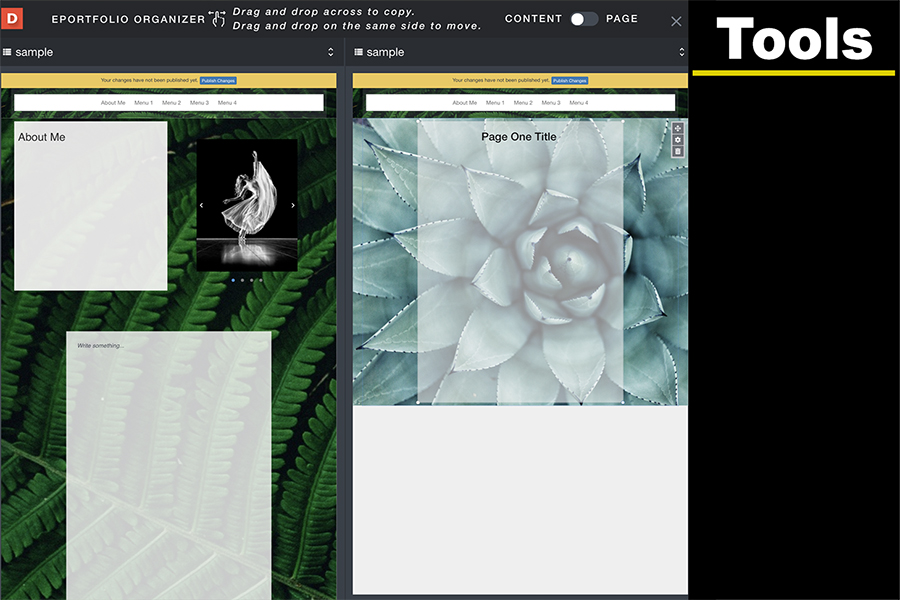
Organize
Here you will be shown how to delete and make copies of your Aportfolio. Please note: a deleted ePortfolio or page can not be recovered! Play Organize Video Tutorial
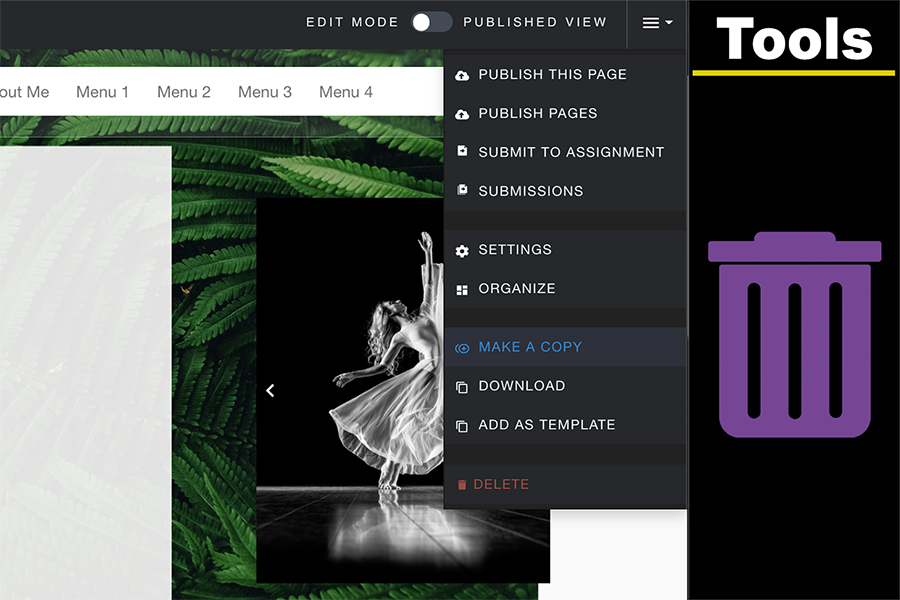
Deleting and Copying Aportfolios
Here you will be shown how to delete and make copies of your Aportfolio. Please note: a deleted ePortfolio or page can not be recovered! Play Deleting and Copying Aportfolios Video Tutorial
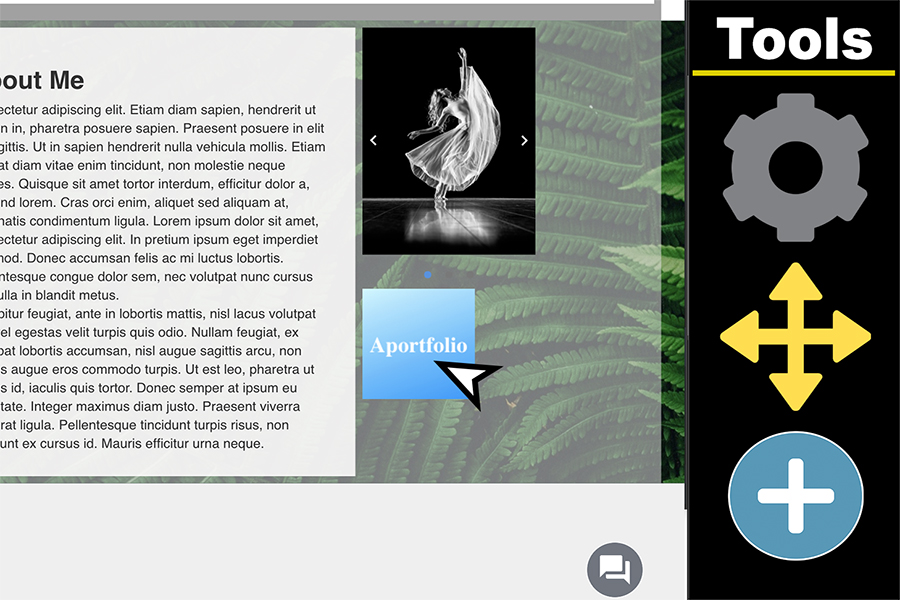
Adding Buttons
This tutorial shows you how to create and utilize buttons in your Aportfolio. Buttons are clickable images that you can link to, either inside or outside your Aportfolio. Play Adding Buttons Video Tutorial
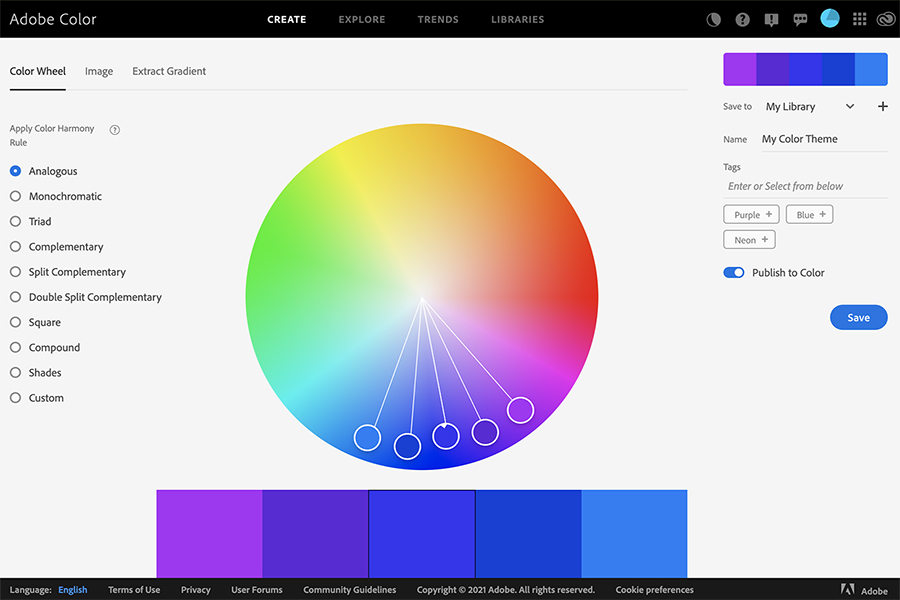
Adobe Color
This tutorial helps you use Adobe Color to find beautiful color palettes for your Aportfolio.###

Digication Login
Creating a well designed portfolio is a must. Use Digication to log in to Aportfolio and manage your ePortfolio. Alumni may sign in at appstate.digication.com.