
This tutorial will make it easy to apply a consistent background or font style throughout your eportfolio!
Slide: Similar to PowerPoint, a slide is a blank page you can add content to, such as text, images, and PDFs.
Module: Modules are used to add content to your Aportfolio. Here are some examples of modules: rich text module, image/video/audio module, gallery module, contact module, and Google module
Note: Customize Styles is context-sensitive. This means that you can customize styles for Text boxes OR Sections/Slides, depending on which area of the page you select
Step 1
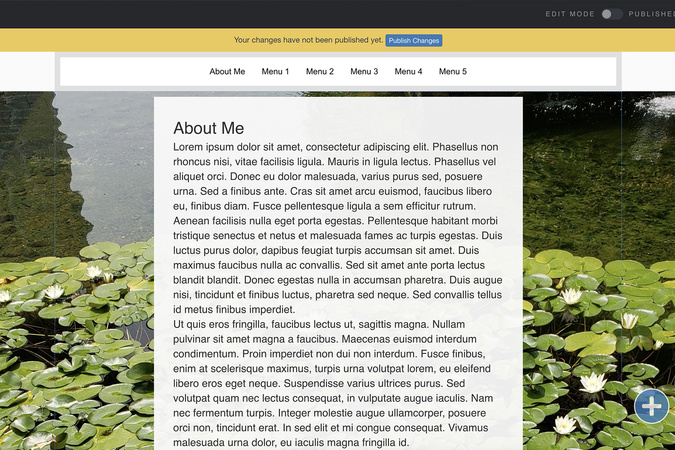
First, create a single page with the font styles and background colors/images you like. You can then use the Customize Style (paint bucket icon) to replicate/copy the style choices on either existing or new sections in your Aportfolio
Step 2
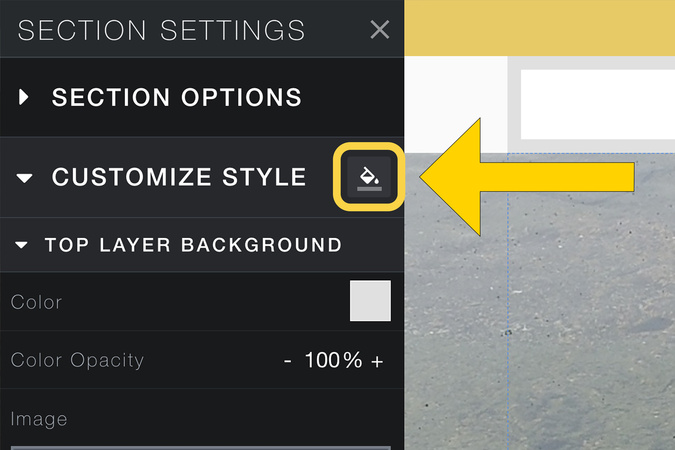
In this example, we are applying the Customize Style to the slide’s background. Make sure you are on the text box or section that contains the styles you want to replicate before applying styles. To apply your top and/or bottom layer background style to other sections of your Aportfolio, first click on the cogwheel in the slide area. Then click the paint bucket icon next to Customize Style.
Step 3
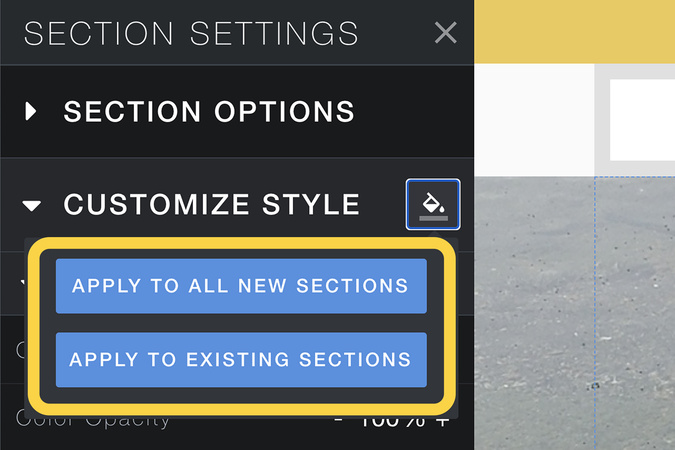
Here, you can choose to apply to all existing sections or apply to new sections. Depending on whether all your pages are already created, you may need to revisit this selection and reapply the style.
Step 4
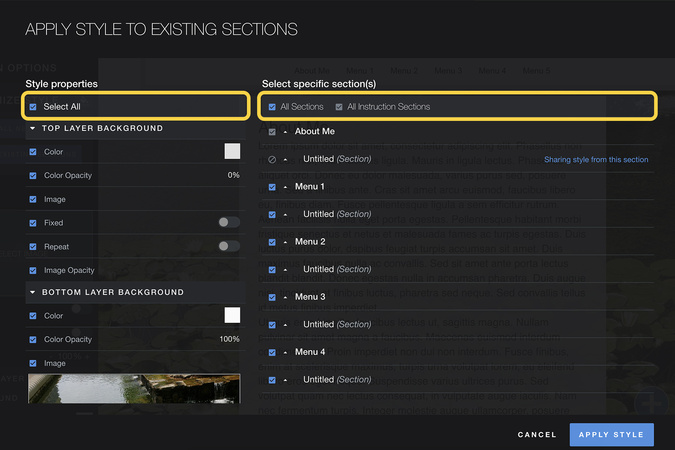
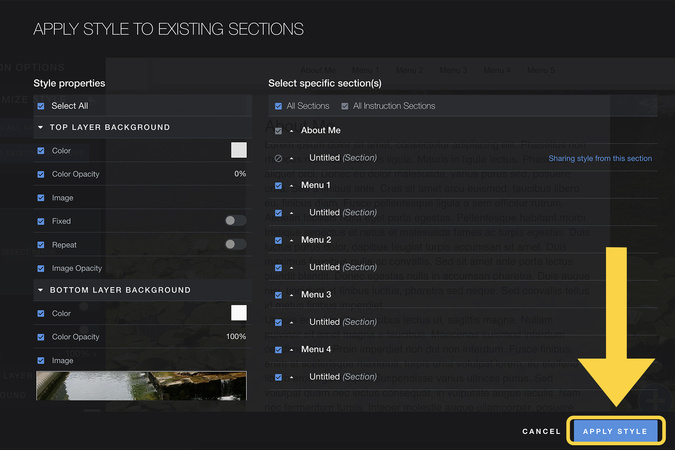
Under Style Properties, check the changes you want added to your other sections. If you want all to be added, make sure to click “Select All” under Style Properties. On the right of your screen, under “Select specific Section(s)”, you will choose which sections you would like to change. If you want everything changed, make sure to click “All Sections”.
Step 5
Once you have finished, click “Apply Style” at the bottom right.
Step 6
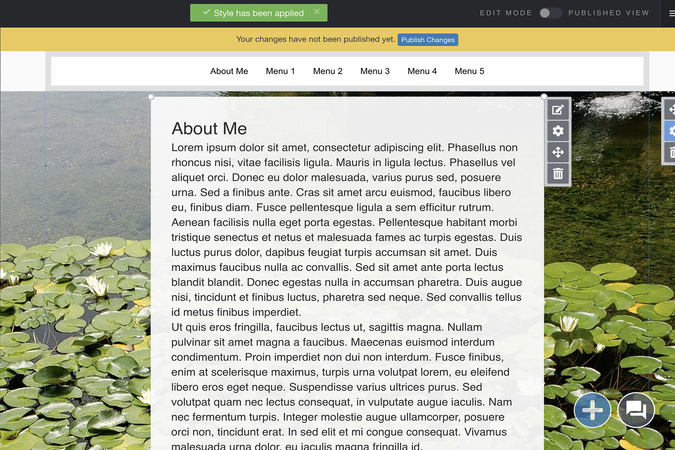
Your other top and bottom layers have now been updated with your new style! Click on the sections you applied them to check them out! This same process can be used to apply styles to Text Boxes by simply selecting the cogwheel next to the text box, then selecting the colors & fonts you would like to replicate throughout your site.
Step 7
To apply the same style to a Rich Text module (includes font type, size , color, etc.), repeat steps 3-6.

Digication Login
Creating a well designed portfolio is a must. Use Digication to log in to Aportfolio and manage your ePortfolio. Alumni may sign in at appstate.digication.com.