
Buttons are helpful if you would like to create dynamic, visual links inside or outside of your Aportfolio. This tutorial will walk you through the process.
Step 1
Go to your favorite photo editor, either online or on your computer. You could use Photoshop, Adobe Illustrator, or Pixlr. This tutorial is using Canva.com

Step 2
Create your own free Canva account, then click Create a design in the top-right corner of the screen.

Step 3
Click custom size. If you would like a square button, 125x125 pixels is a good size. If you would like a rectangular button, 120x90 or 120x60 pixels is good. Note: You should use pixels as your dimension measurement.

Step 4
Design your button! Choose a background for your button. Your background should be very simple with no distracting photos. This background features an ombre blue that is interesting yet not overly distracting. Choose a simple font for your button. This button uses Times Neue Roman.

Step 5
Download or save your button. If you are using a website, download your image as a PNG. If you are using software, you should also save it as a PNG.
Step 6
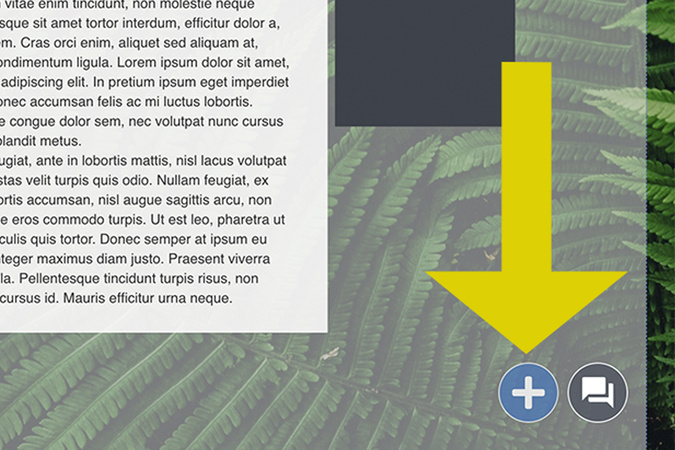
You can either upload the PNG by either dragging it directly onto your page or clicking the blue button and choosing “upload file.”
Step 7
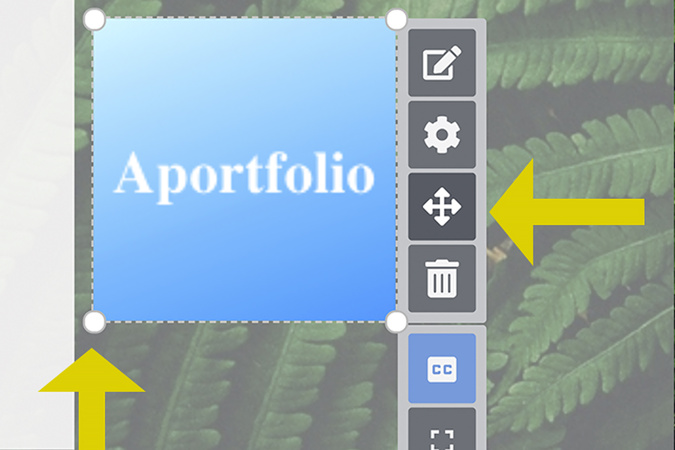
Using the circles in the corner of the image, resize your button as you like. Move the button to its desired location using the arrow keys. If your button appears blurry, it may be stretched. Resizing the image should fix that problem.

Step 8
To make your image clickable, click the Settings icon.

Step 9
Under the image settings, turn on “make image clickable” and paste your URL. You can choose whether the link opens in a new window. We suggest using "open in new browser" when linking to sites outside your Aportfolio, such as LinkedIn. You may also try messing with the “best fit” and “full image” options as well.

Step 10
Check that your link is working. To do this, first publish the page.

Step 11
Click on the Published View. It’s located up and to the right of your menu.

Step 12
Finally, click on your button.

Digication Login
Creating a well designed portfolio is a must. Use Digication to log in to Aportfolio and manage your ePortfolio. Alumni may sign in at appstate.digication.com.