
Sometimes you may want to try something such as a new design in your Aportfolio. Or you may want to make a similar Aportfolio with a few differences to send to a particular audience. In these situations, making a copy of your Aportfolio is helpful. You should start in the Aportfolio you would like to copy.

Step 1
To make a copy, click on the settings menu

Step 2
Select Make a copy.

Step 3
Next, give this new Aportfolio a unique name and click the copy button.

Step 4
Once your Aportfolio has successfully copied, you will see this screen. If you would like to start working in your new Aportfolio, click “Visit copied Aportfolio.”
Step 5
If you would like to delete an Aportfolio, click the settings menu.
Step 6
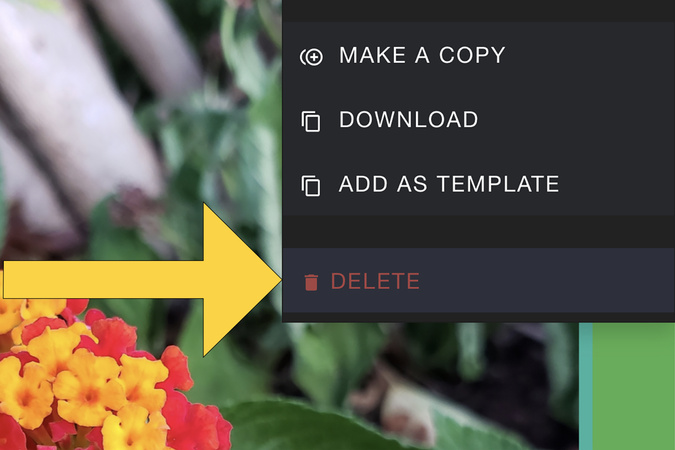
Next, click delete.
Step 7
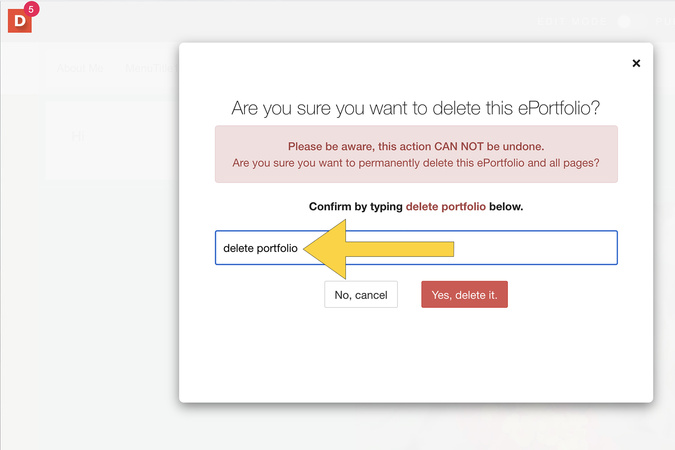
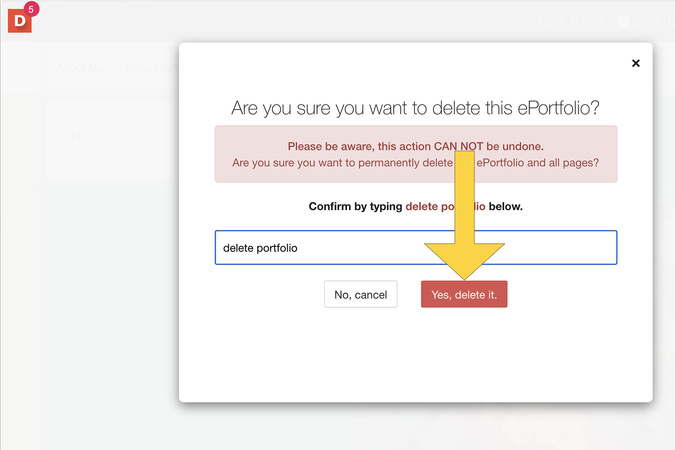
You must type the words "delete portfolio" in all lowercase to confirm.
Step 8
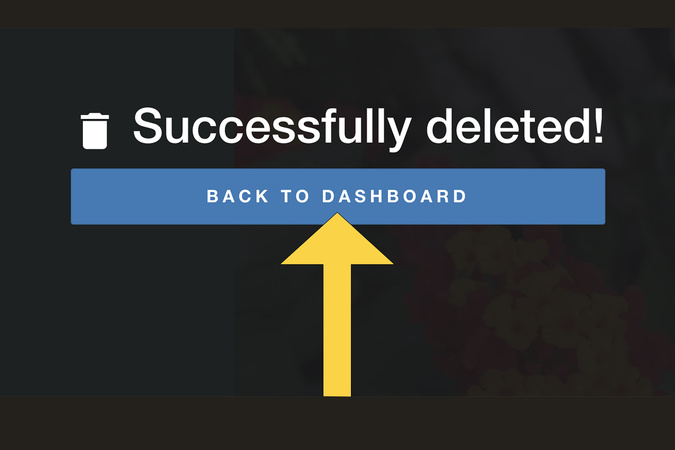
You can then return to your dashboard.
Step 9
Once you have your desired portfolio, you can move content between them. To do so, click on the four-arrow moving tool.

Digication Login
Creating a well designed portfolio is a must. Use Digication to log in to Aportfolio and manage your ePortfolio. Alumni may sign in at appstate.digication.com.