
Your directory icon is the icon viewers see next to the title of your Aportfolio in the directory. The Digication system recommends using the following pixel measurements:
- 1920×1080
- 1600×900
- 1280×720
- 1024×576.
Some great websites to edit the dimensions of an image include: Canva and Pixlr. Another alternative is Photoshop. Photoshop is available on most computers in the library.
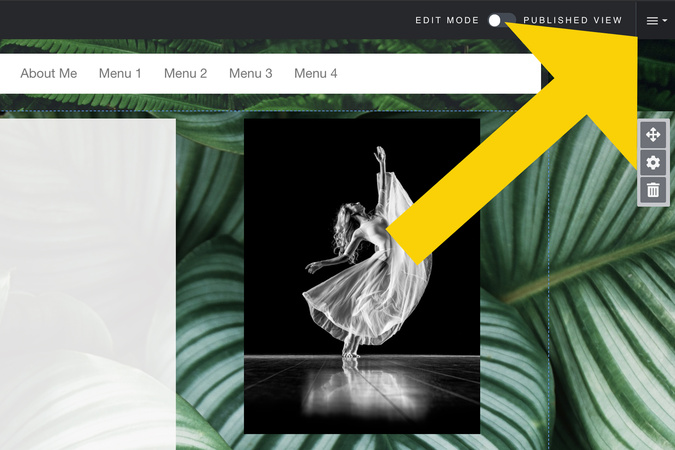
Step 1
To change your directory icon, click on the settings menu
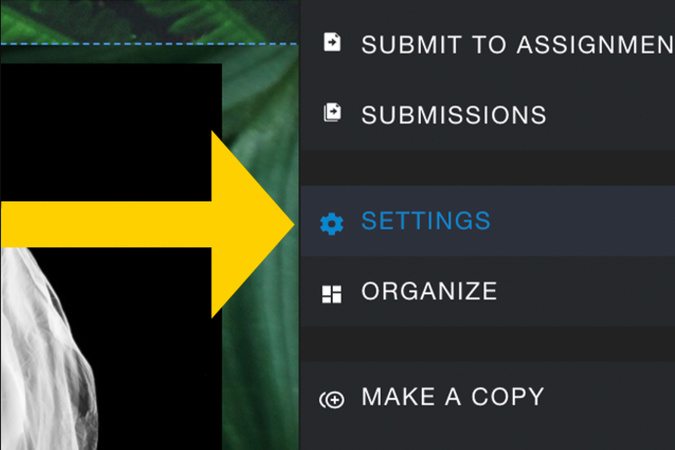
Step 2
Select settings
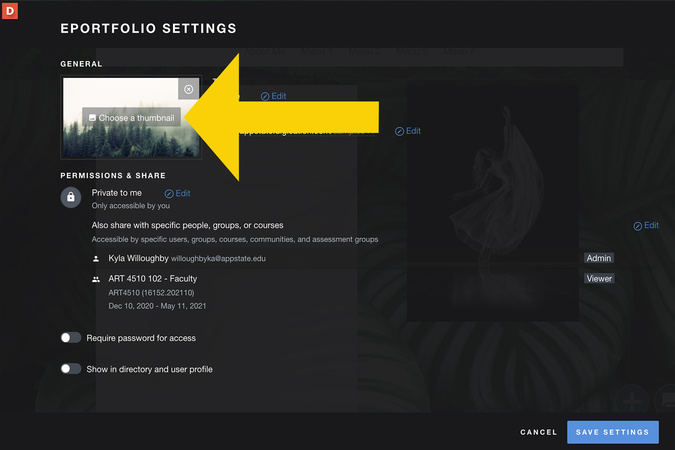
Step 3
This is your “Directory Icon.” To change it, click “Choose A Thumbnail.”
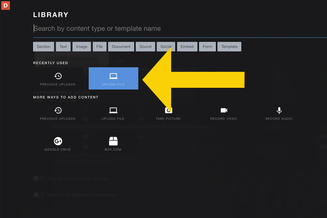
Step 4
You will be taken to this screen, where you can select how to upload your photo, depending on where on your computer it is being uploaded from. We have selected - Upload File.
Step 5
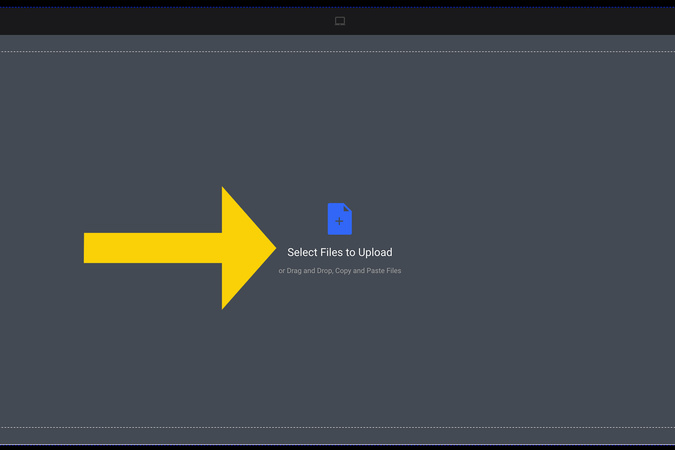
From this page, you can either drag and drop an image from your desktop to begin uploading, or select “Choose files” to browse your files and select an image.
Step 6
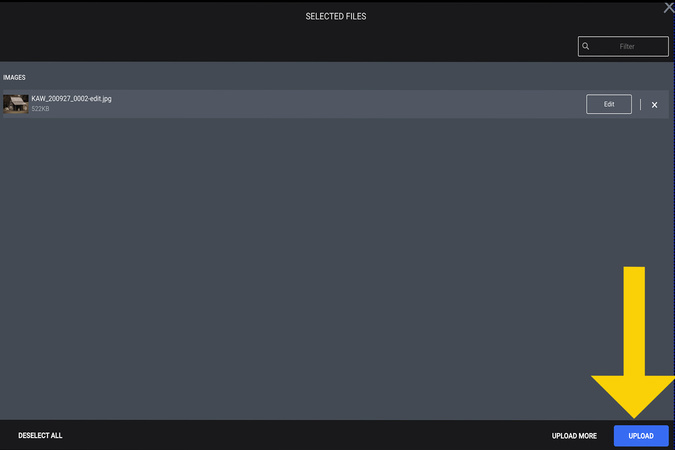
Once you have selected the image, and see that it has appeared as it shows in the screenshot, select “Upload.”

Step 7
Once your image is uploaded, you will see that it appears in the directory icon box. Click Save Settings, in the bottom right-hand corner

Digication Login
Creating a well designed portfolio is a must. Use Digication to log in to Aportfolio and manage your ePortfolio. Alumni may sign in at appstate.digication.com.