
The organize feature is helpful if you need to quickly organize content on your page.

Step 1
Click the hamburger icon in the top-right corner of the screen.

Step 2
Click the organize button.
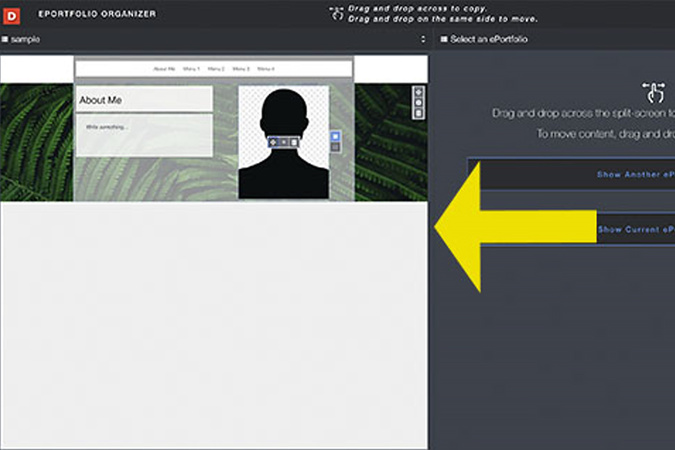
Step 3
To move content around the page, use the screen on the left.

Step 4
To move content around the page, you can use the icon with four arrows. Click and drag on the logo.
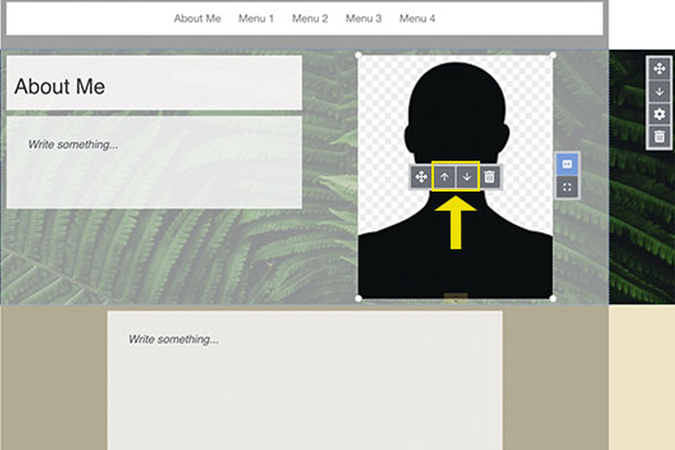
Step 5
Click the single arrow logo to move content from section to section.
Step 6
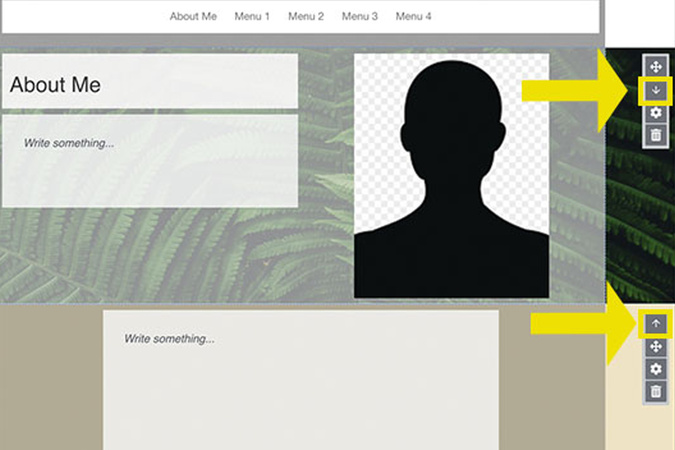
You can also change the order of the sections. Use the single arrow icon to move a section up or down one section at a time.

Step 7
Use the four-arrow icon to drag the section to where you want it.
Step 8
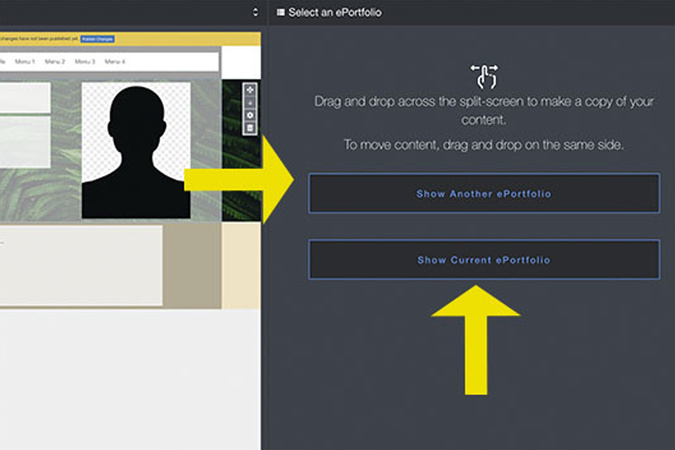
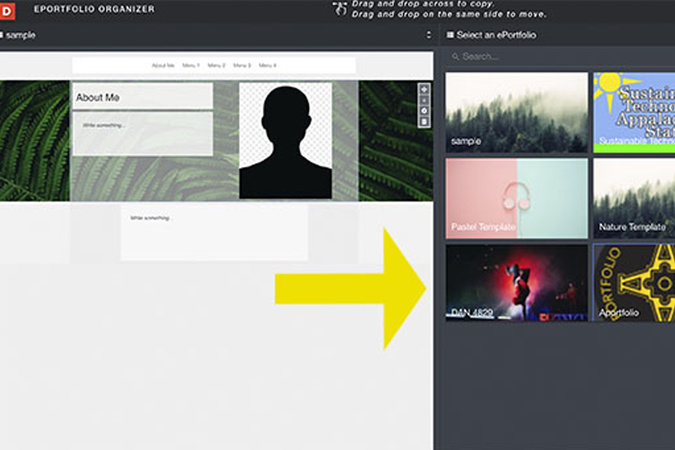
The right-hand side of the screen allows for movement between pages or even ePortfolios. To move content from a page within your current eportfolio, click “Show Current ePortfolio”. To move content from a different portfolio, click “Show Another Portfolio”.
Step 9
After this, you can select a portfolio to work from. This does include the one you are already working on.

Step 10
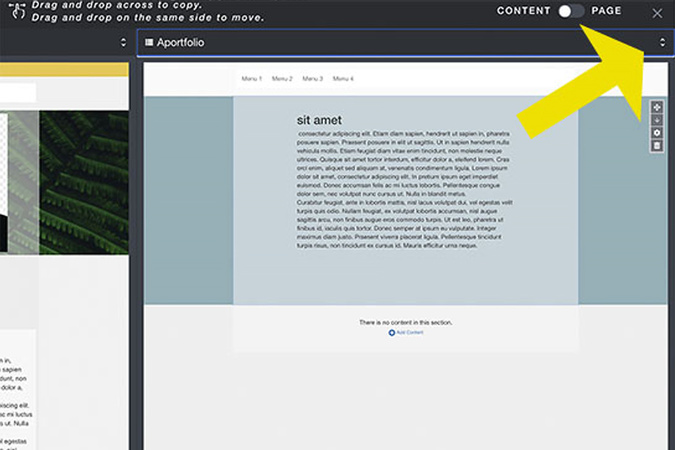
Once you have your desired portfolio, you can move content between them. To do so, click on the four-arrow moving tool.

Step 11
Then, click and drag the content to the other portfolio.
Step 12
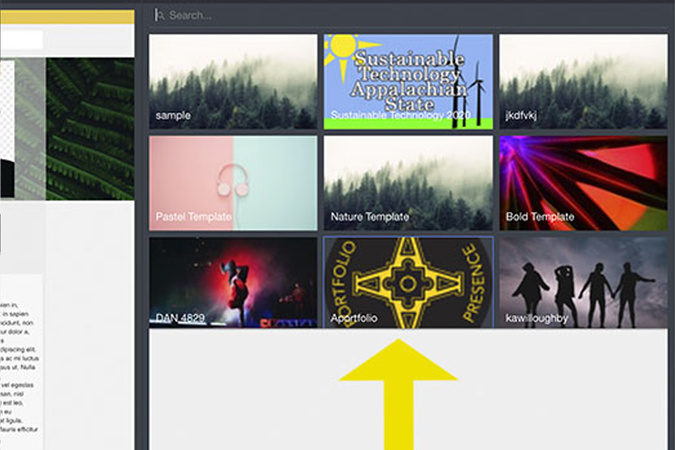
To put a new portfolio on the right-hand side of the screen, click the arrows next to the name of the portfolio at the top of the page.
Step 13
From here, you can select a new portfolio to work from.
Step 14
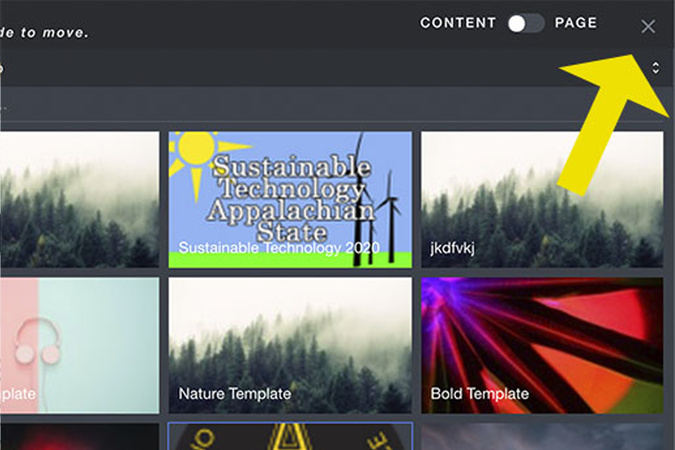
When you are done organizing, click the ‘X’ at the top right of the screen.

Digication Login
Creating a well designed portfolio is a must. Use Digication to log in to Aportfolio and manage your ePortfolio. Alumni may sign in at appstate.digication.com.