
This tutorial instructs you on how to create parallax scrolling.
Parallax Scrolling will make the background layer photo move slower than the foreground layers when scrolling.
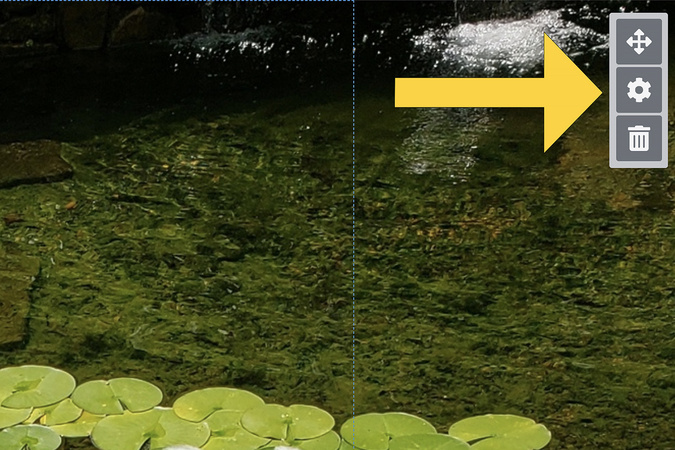
Step 1
To enable parallax scrolling on the background photo, hover over the slide and click the settings icon.
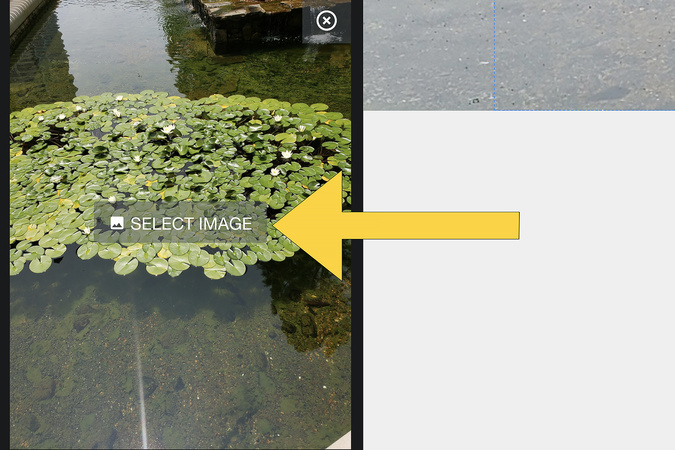
Step 2
Under the bottom-layer background, click Select Image.

Step 3
You can either select a photo from previous uploads or upload a new file.
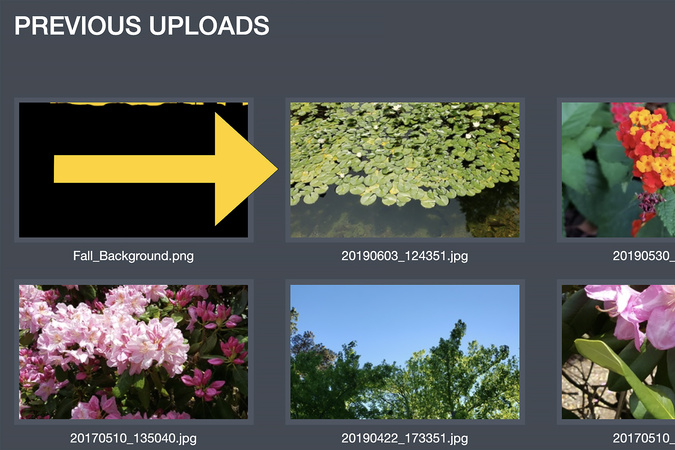
Step 4
Select the image you want to upload.
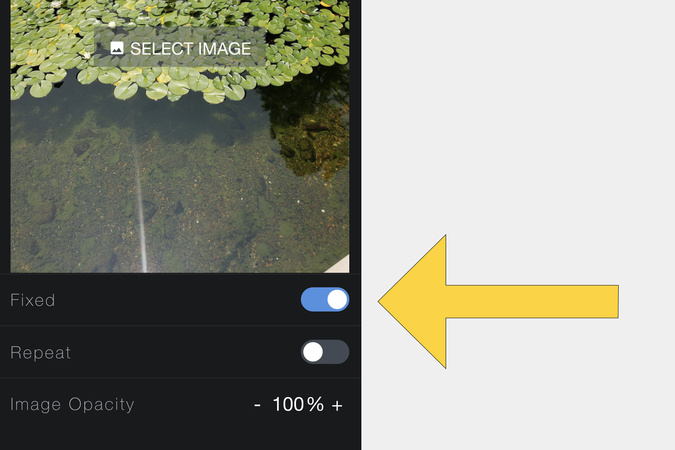
Step 5
To enable parallax scrolling for the image, click the button next to fixed. When it is turned on, it is blue.
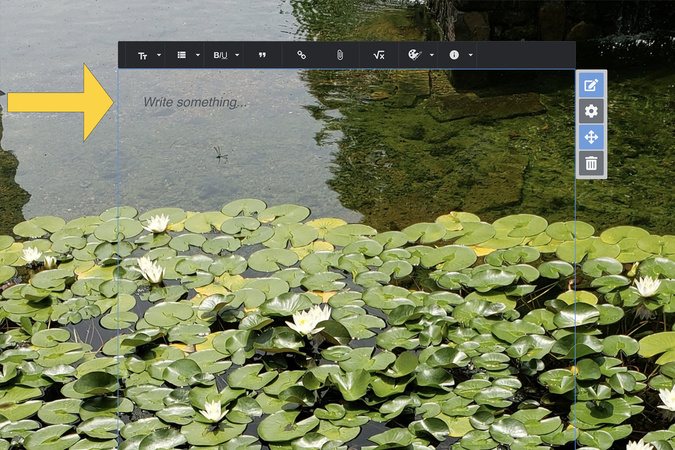
Step 6
To ensure the photo extends as far as you would like, you may need to increase the size of the blank text box above the photo.

Digication Login
Creating a well designed portfolio is a must. Use Digication to log in to Aportfolio and manage your ePortfolio. Alumni may sign in at appstate.digication.com.