
This tutorial will show you how to make the background of your Aportfolio connect as one seamless image from top to bottom.

Step 1
Click the settings/gear icon on the main slide of your ePortfolio.

Step 2
Make sure that you do not have any top-layer background colors or images. To remove them, click the ‘x’ on their respective boxes.
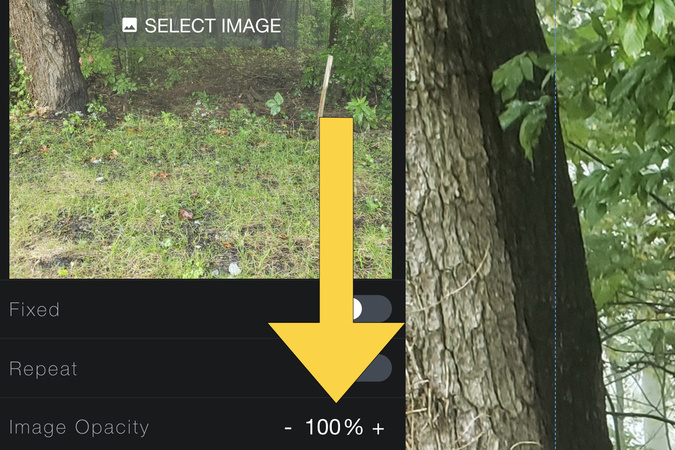
Step 3
Make sure the bottom-layer background image's opacity is set to 100%.

Step 4
Click the select image button.
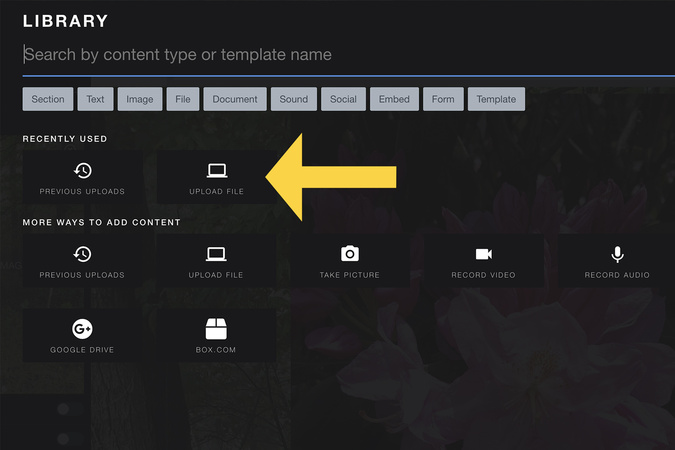
Step 5
Click the upload file.
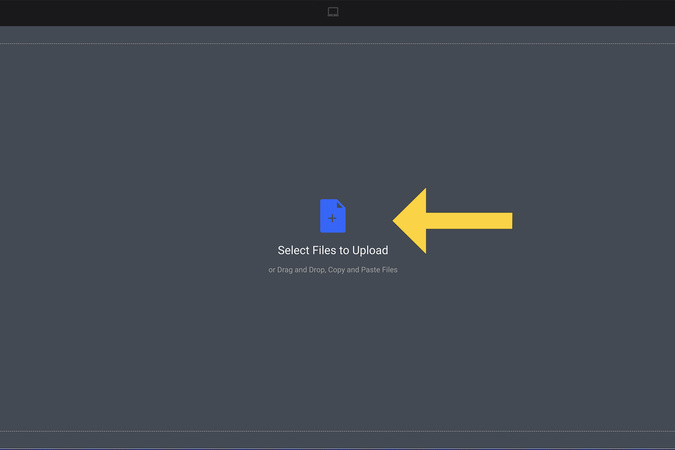
Step 6
Click select files to upload and choose a file or drag your image into the box. Then click upload
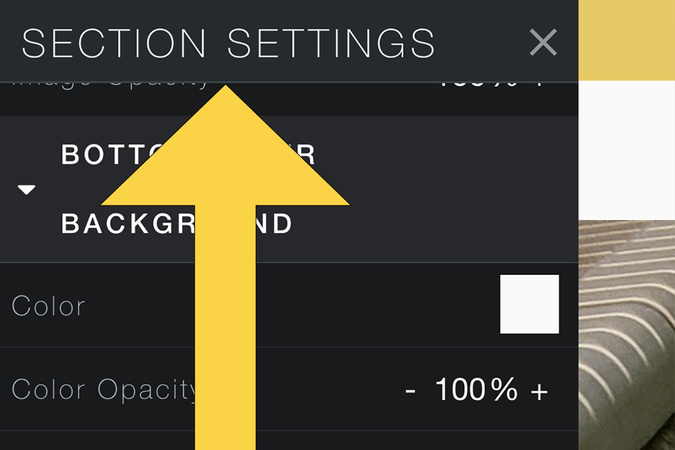
Step 7
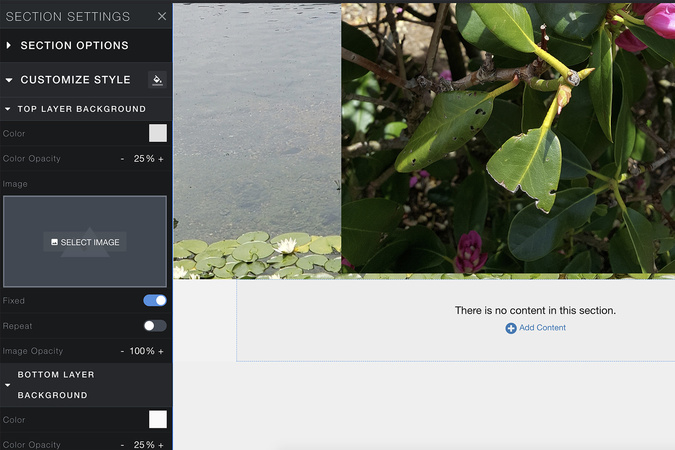
Once it has uploaded, make sure you are in the section settings.
Step 8
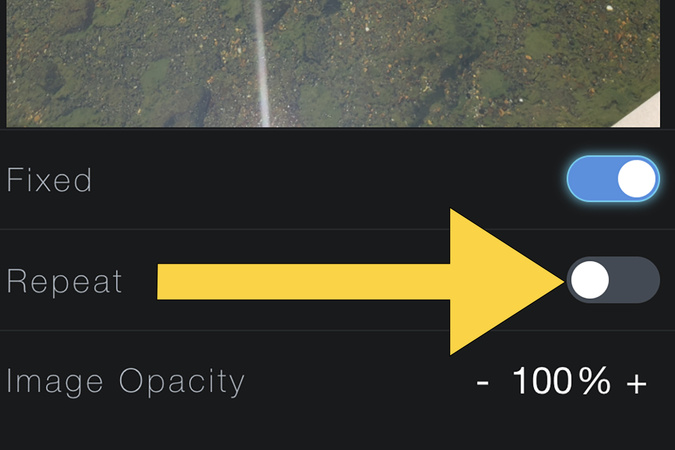
Click and unclick the repeat option under the bottom layer background
Step 9
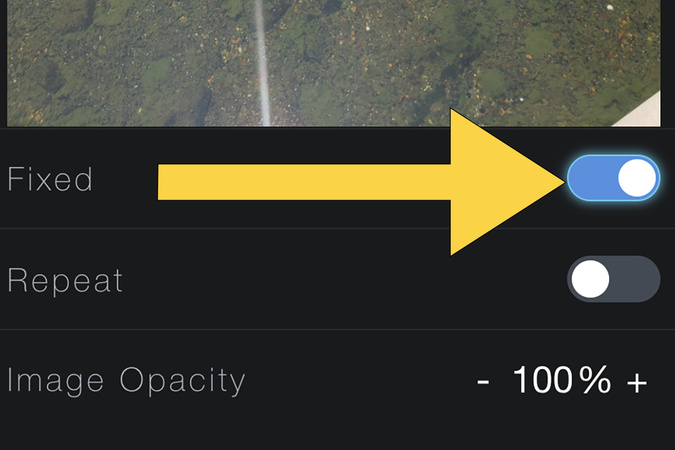
Turn on the fixed option. If it was already on, turn it off and back on.
Step 10
If you have more than one section on the page, repeat this process for any other sections on the page
Step 11
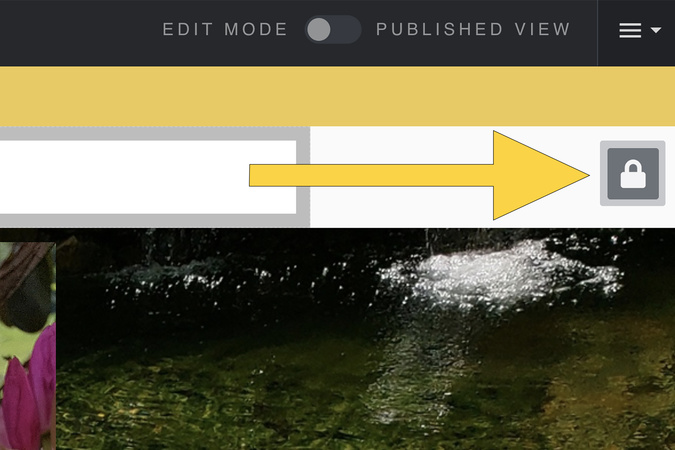
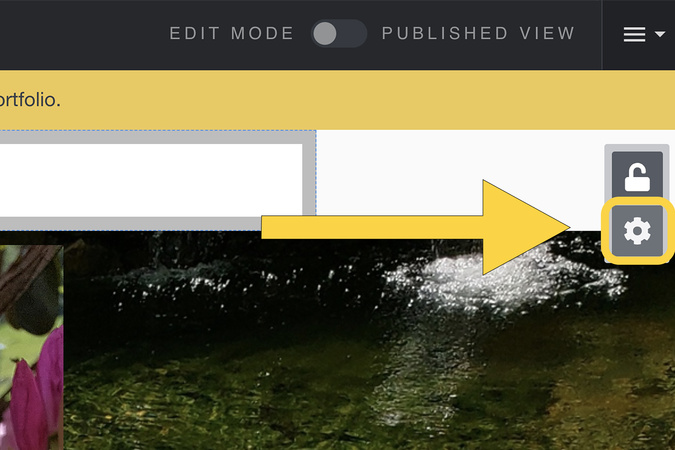
Hover over the header/navigation menu, then click the lock.
Step 12
Click on the gear/settings icon and repeat the steps above for the header/navigation menu.

Step 13
The background should now connect from top to bottom!

Digication Login
Creating a well designed portfolio is a must. Use Digication to log in to Aportfolio and manage your ePortfolio. Alumni may sign in at appstate.digication.com.