

To access your Aportfolio dashboard, go to http://aportfolio.appstate.edu and click “Login to Aportfolio”. Aportfolio opens to your Dashboard. Click the red D on the upper left to view a menu of the options in your dashboard.
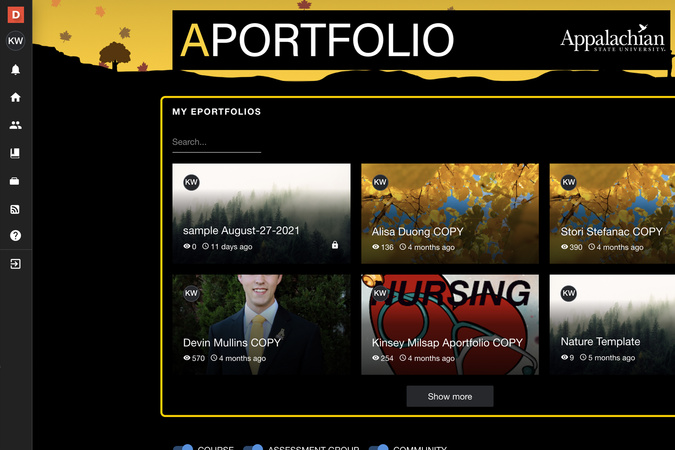
The My ePortfolios section is where you will find all ePortfolios you have created and all ePortfolios that have been shared with you.
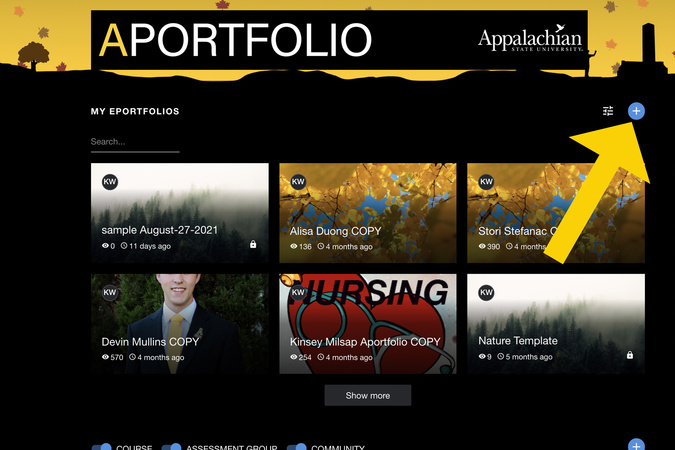
Clicking the blue plus sign will enable you to create a new ePortfolio

The dashboard has a filter capability that allows you to sort various views. To open the filters click the three slider icon beside the blue plus sign.
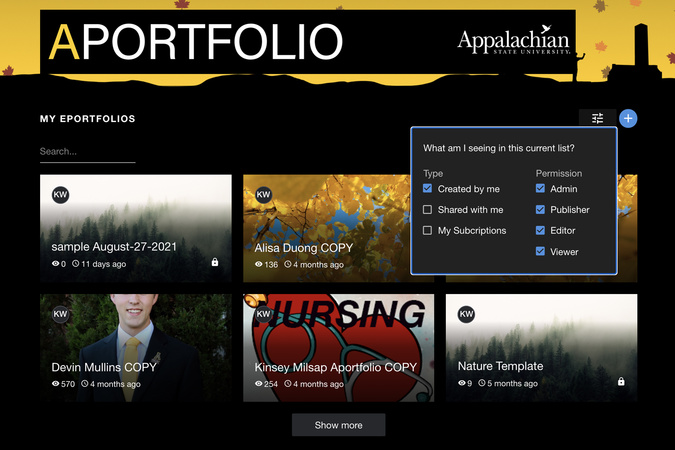
You can filter your ePortfolio by types and permissions.
A blue check sign signifies that is what you wish to filter by. Clicking on a blue checkmark will turn that filter off.

In this example, “Created by me” was turned off and so no ePortfolios appear in the My Eportfolios section.

Consequently, clicking the grey box beside turns a filter on. Checking “Shared with me” allows you to see ePortfolios that were shared with you. This is useful if you want to see your classmates' ePortfolios.
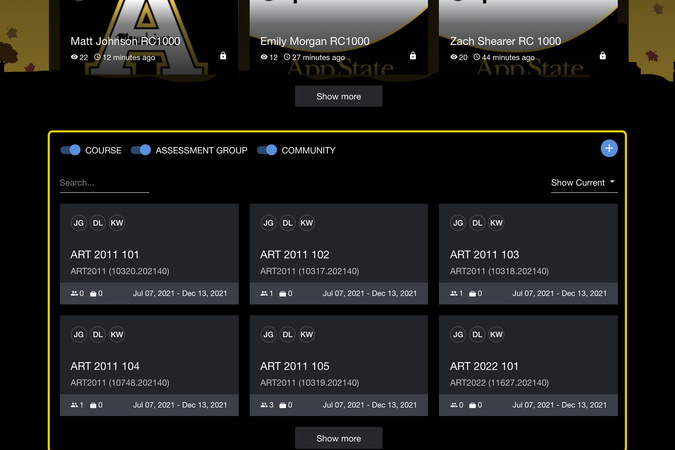
You can also see which courses, groups, or communities you are in that require an Aportfolio.
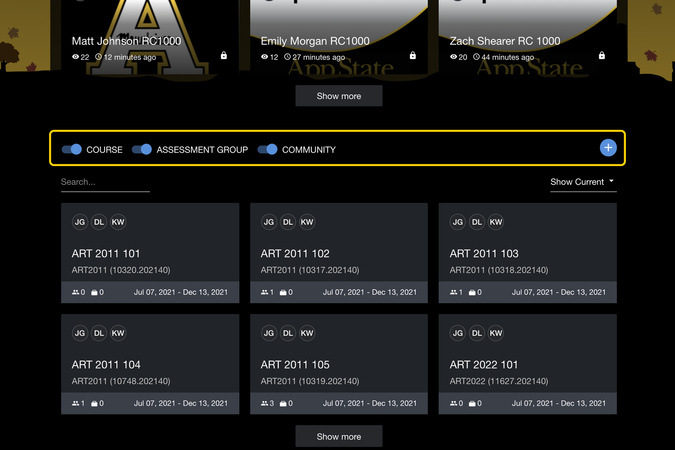
You can click on the buttons beside Course Assessment Group, and Community to filter by those categories.

Clicking on the red D in the upper right-hand corner opens the following panel
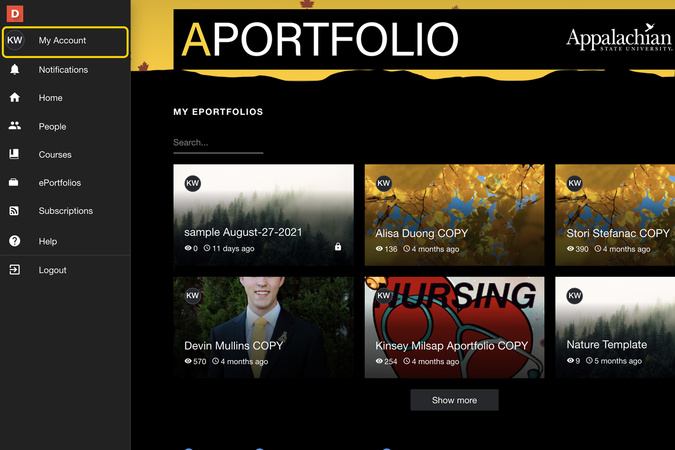
Click My Account
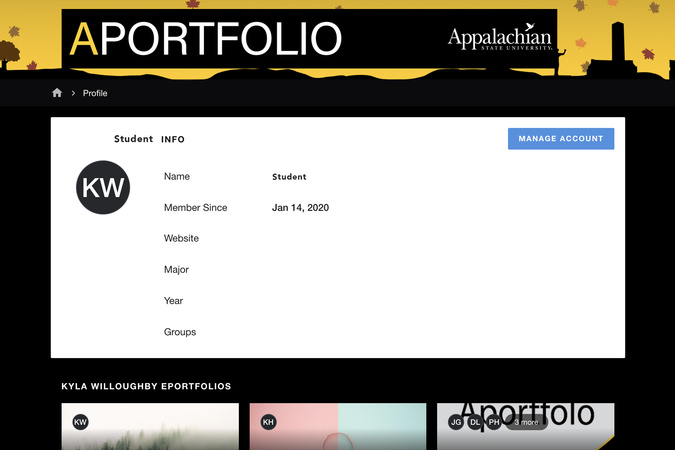
This shows your current account settings. If you wish to update your account information, click on Manage Account. Please note that several settings can only be changed by our Aportfolio admins. If you wish to change those settings, email aportfolio@appstate.edu
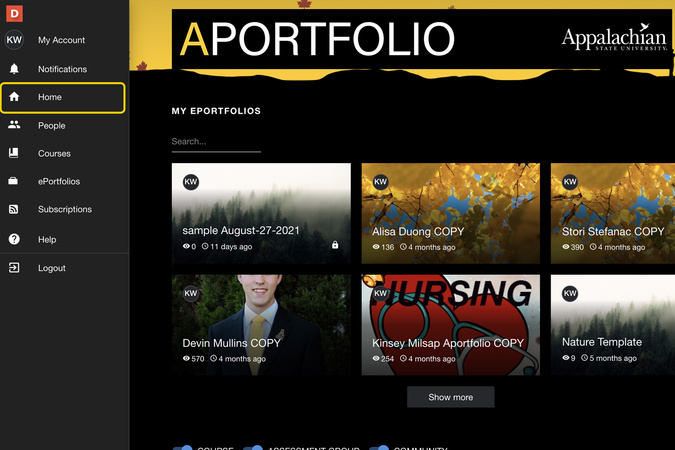
Clicking “Home” brings you to the default landing page

Click on People
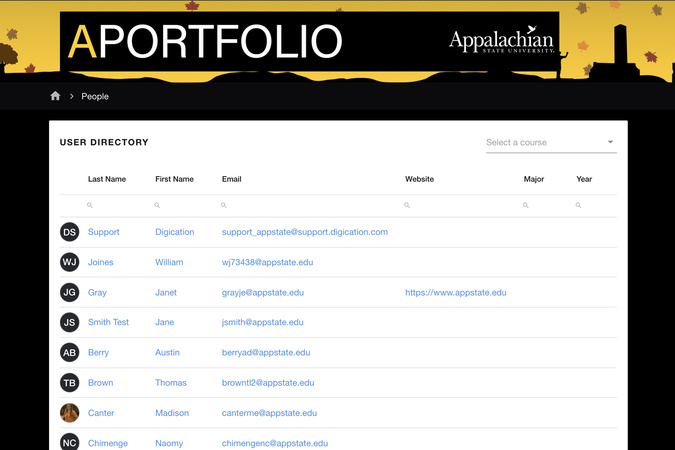
This brings up a directory of all people currently registered in the Aportfolio system.

You can search for a person by clicking beside the magnifying glass under any column and typing what you wish to search. In this example, we searched for Elaine Gray, by first and last name.
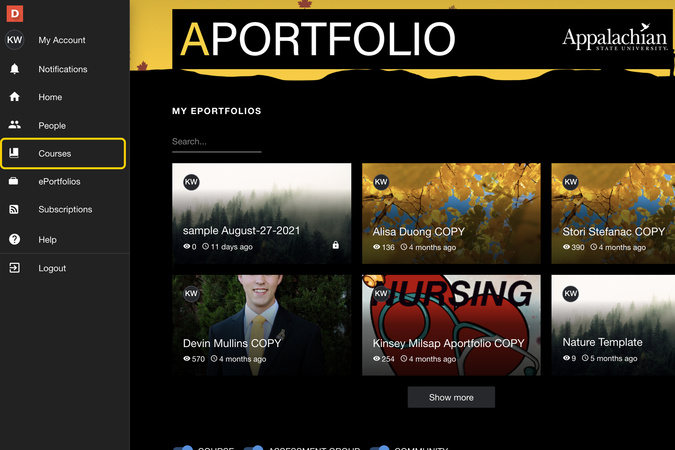
Click on Courses

This is where you will see all courses you are in that are using Aportfolio. This screen is exactly the same as what you will see on the home page.

Click on Eportfolios

Here you will find our featured Aportfolios. These ePortfolios were finalists in our Aportfolio Scholars award. If you are creating an ePortfolio for professional use or need guidance about what a great ePortfolio looks like, these portfolios are a great place to start. To learn more about the Aportfolio Scholars, click here.

Subscriptions are for those Aportfolio Courses that utilize Forums. Students can opt to be notified of any interaction with their forum posts, although this feature is rarely used.

Clicking Help redirects you to the Digication helpdesk website. Digication is the host system for Aportfolio. Although you can request "help" Directly from Digication, we suggest you email your question or concern to aportfolio@appstate.edu. as the Aportfolio Staff responds quicker since our staff is dedicated to ASU students. We typically respond within two waking hours.
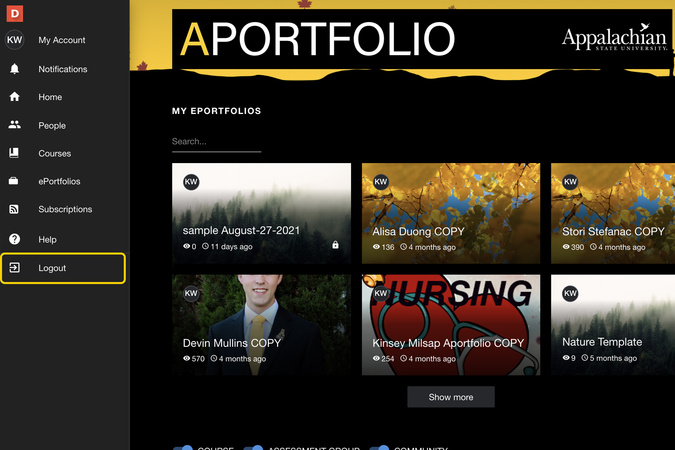
Clicking logout will log you out.

Digication Login
Creating a well designed portfolio is a must. Use Digication to log in to Aportfolio and manage your ePortfolio. Alumni may sign in at appstate.digication.com.