
When you add materials and change content will need to publish the page. If you do not publish the pages, no one (but you) will see changes you have made. The site autosaves as you make changes but you must remember to manually click the "publish pages" option each time you add or change anything. There are numerous ways to publish your pages.
Step 1
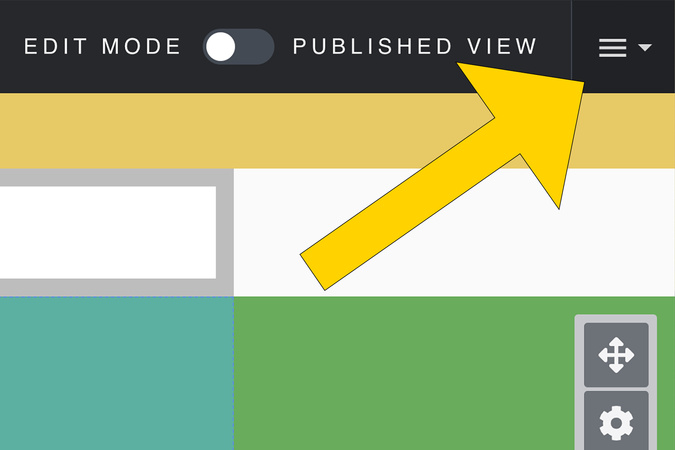
To publish your page, click the settings menu, in the upper right-hand corner.
Step 2
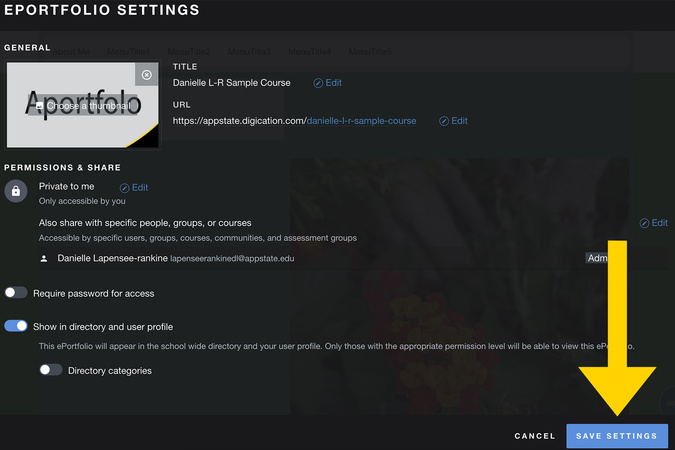
If this is your first time publishing, you will see a pop-up of your Aportfolio settings. This is a good time to double-check that all of your settings are correct. Once you have looked over them, select Save Settings.

Step 3
Select publish this page.
Step 4
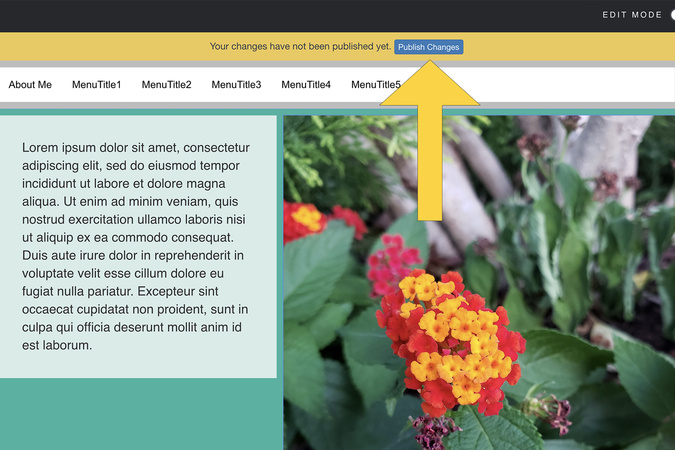
Alternatively, you can click publish changes in the yellow bar at the top of your page.
Step 5
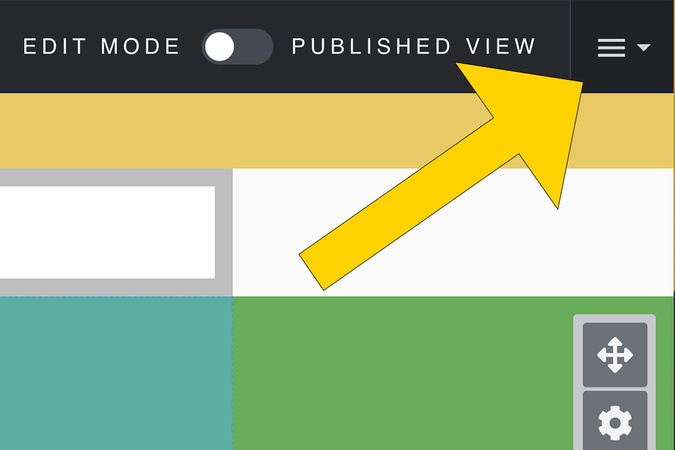
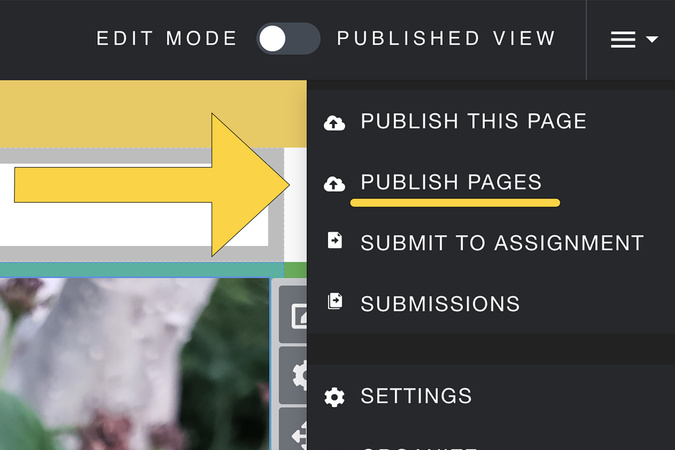
If you would like to publish numerous pages at the same time, click on the settings menu.
Step 6
Select publish pages.
Step 7
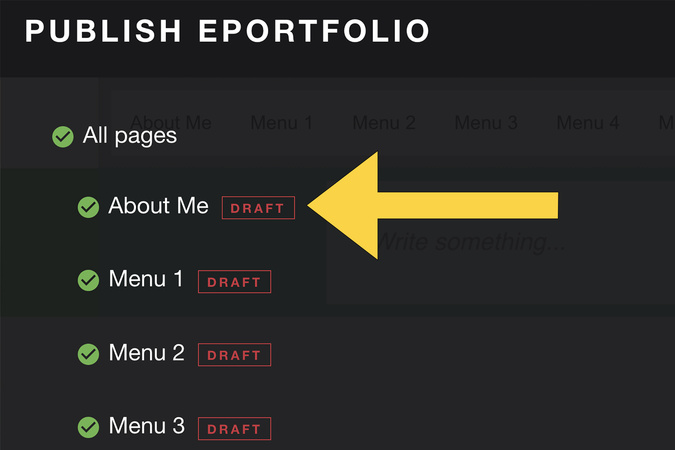
Pages that have a red draft bar next to them have not been published.
*Unpublished pages are automatically selected to be published. You can choose not to publish a page by clicking on the green check. Only pages with a green check next to them will be published.
Step 8
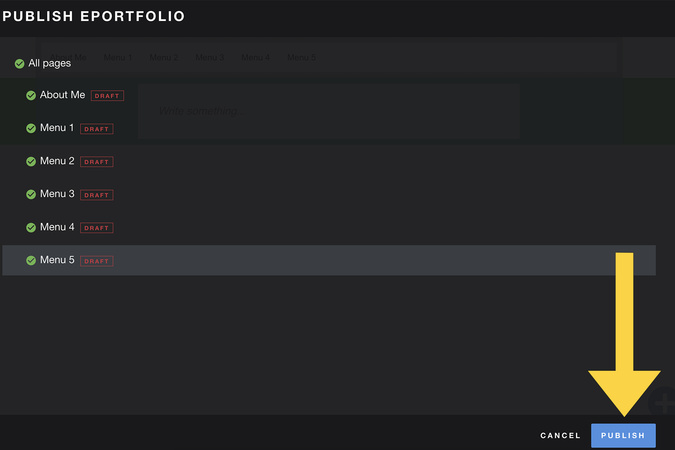
Once you have selected all the pages you wish to publish, click publish.
Step 9
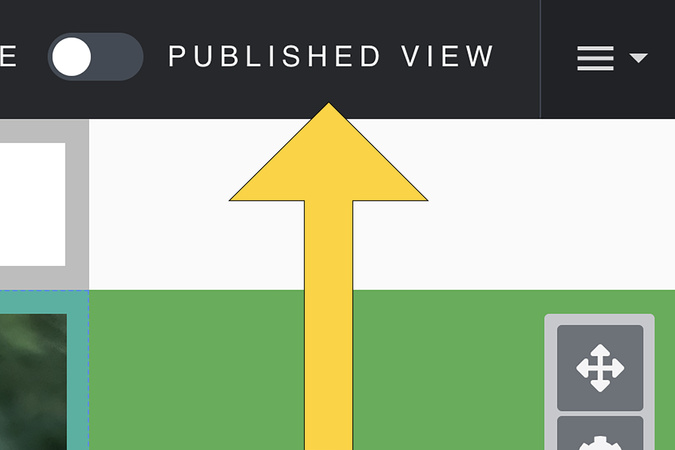
Your page is now published. If you would like to preview your page, click on the publish view.
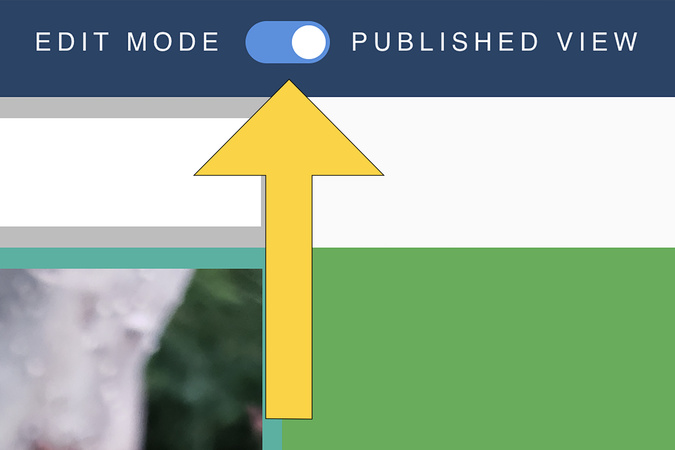
Step 10
When you are ready to begin editing again, click the edit button here.

Digication Login
Creating a well designed portfolio is a must. Use Digication to log in to Aportfolio and manage your ePortfolio. Alumni may sign in at appstate.digication.com.