
To change the navigation menu in your eportfolio and/or add new pages to your site, follow the directions below.
Navigation Menu

Step 1
If you need to edit your navigation menu, click on the white space in the menu.
*This will bring up a notice that you are interacting with the header slide.
Step 2
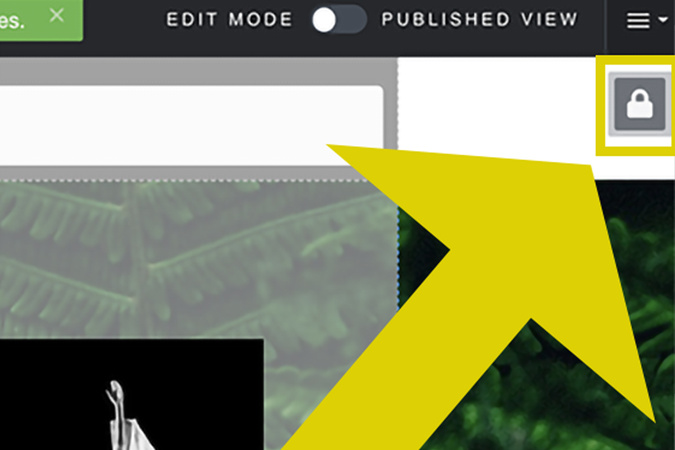
Next, you will need to unlock the header by clicking on the lock icon.

Step 3
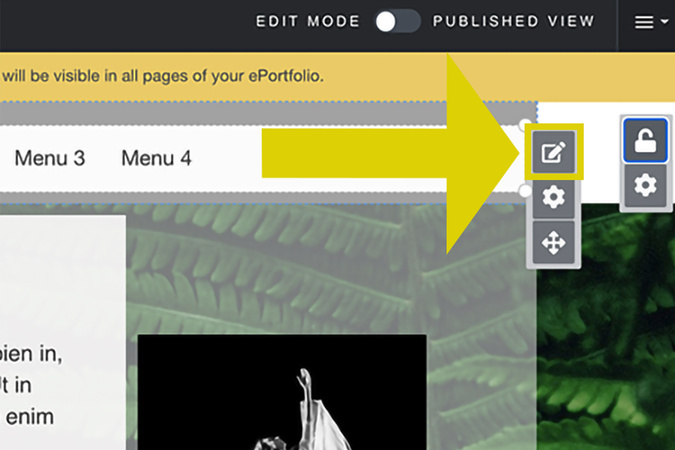
You will see a notice telling you that all changes made to the header section will be visible on all pages.
Step 4
To edit navigation, hover over the menu and click the edit button.

Step 5
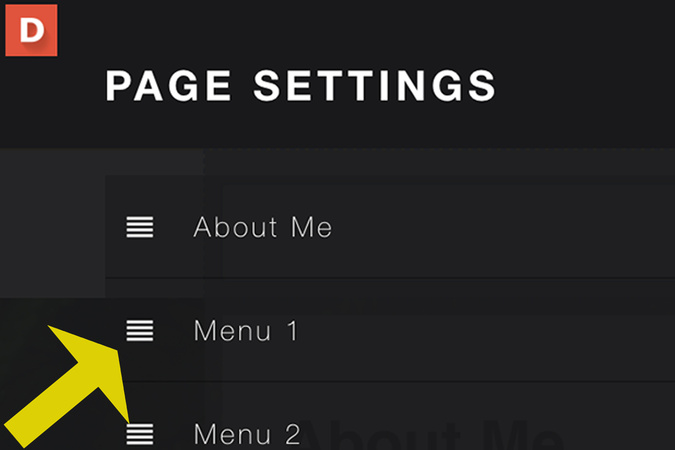
Here you will find all of the pages and subpages you have created. To add a new page, click add a new page and give it a title.
Step 6
Moving Pages
If you need to move a page, click the hamburger icon to the left of the page name, then drag and drop.

Step 7
Subpage
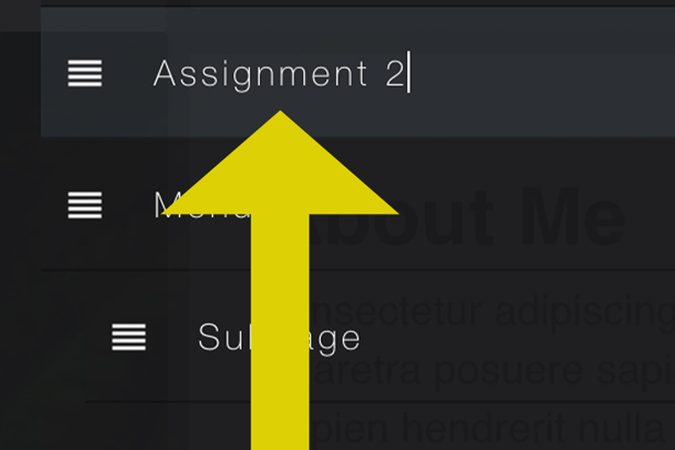
If you would like to designate a page as a subpage, click on the icon and drag the page to the right.
Step 8
Edit Titles
To edit the title of a page, click on the title. After you’re done, there is no need to hit enter unless you need to create another new page.
Step 9
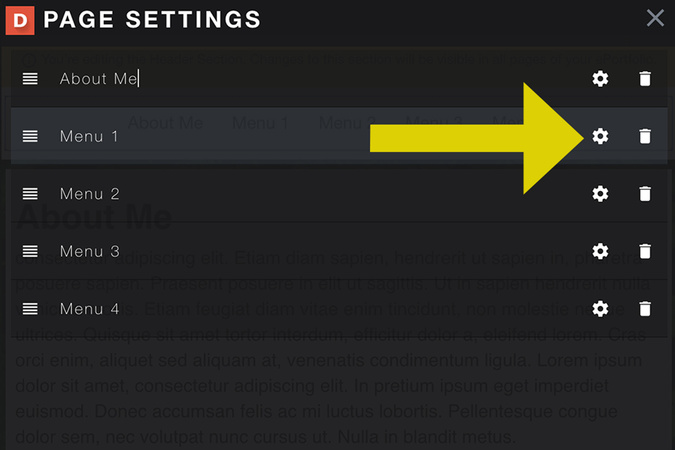
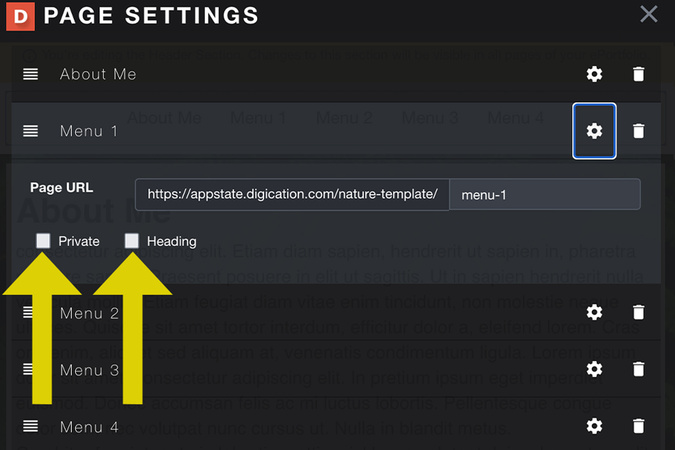
If you need to make a page or a header private, click the settings icon on the right side of the page.
*Making a page a header will make it unclickable
Step 10
Then click on either Private or Header.
Step 11
Delete Pages
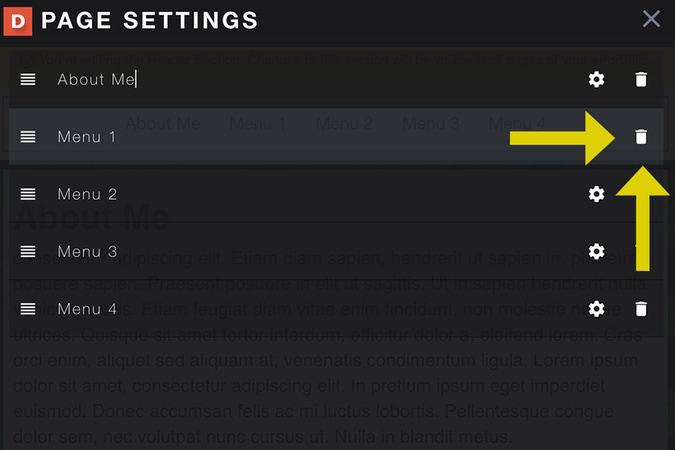
If you need to delete pages, click the trash icon. Please note that deleted pages can not be recovered, and there is no "undo" option!
Step 12
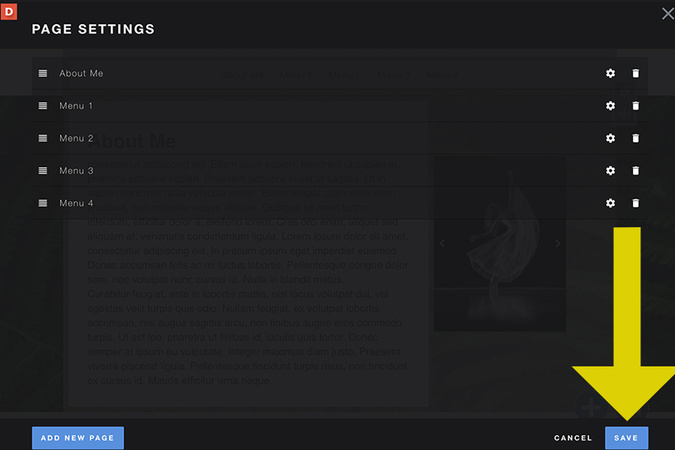
Once you are done, click save.

Step 13
If you have deleted pages, you will receive a prompt requiring you to type "delete".
*You must type “delete” in all lower cases. Then click “Yes, delete it.”
Deleted pages can not be recovered.
Navigation Text, buttons, and Background
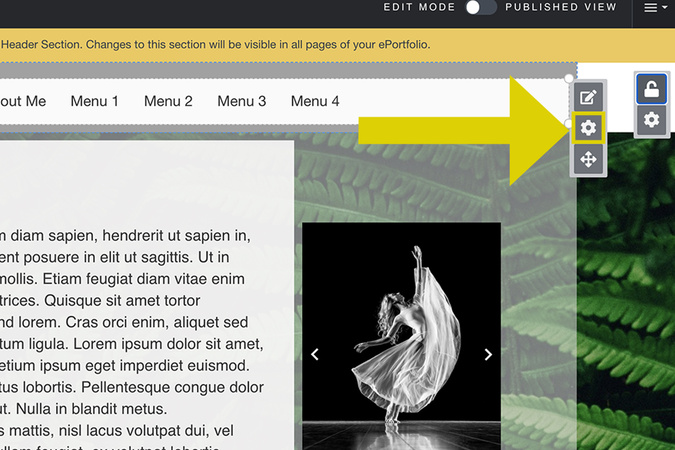
Step 1
To edit your navigation menu design, hover over the menu and click the settings icon.

Step 2
Under the Text dropdown, you can choose a font, font size, font color, font hover color, and font active color.
*Hover Color is the color your text will change to when the mouse hovers over it.
*Active Color is the color your color will change to when you are currently on a page.
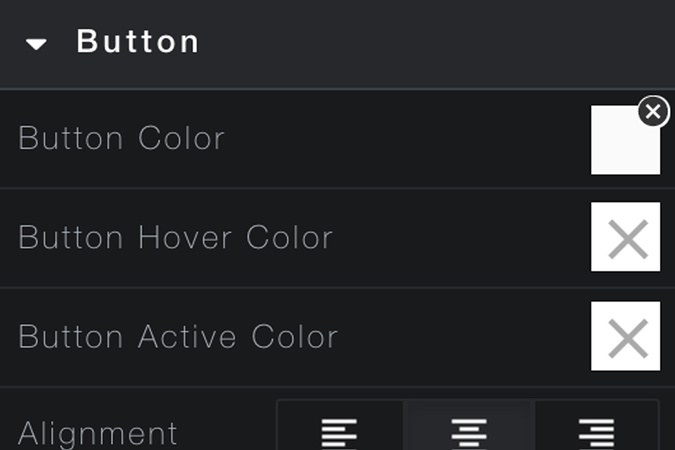
Step 3
Under the Button dropdown, you can choose a button color, hover color, active color, text alignment, and whether you want your button to have round or sharp corners.

Step 4
Under the Background dropdown, you can change the background color and opacity, the background image/opacity, and create a seamless background for your whole page.

Digication Login
Creating a well designed portfolio is a must. Use Digication to log in to Aportfolio and manage your ePortfolio. Alumni may sign in at appstate.digication.com.