
If you would like to edit the color or background image on your top and/or bottom layers of your page, follow the directions below.

Step 1
Outlined in yellow, the Top layer of your aportfolio contains your text, photos, and other content.
Outlined in purple, the Bottom layer of your eportfolio is the background color/photo of your whole eportfolio.

Step 2
To edit either your top or bottom layer background, click the design icon on the far right of your screen. If you would like to edit text boxes, click here to view the tutorial.
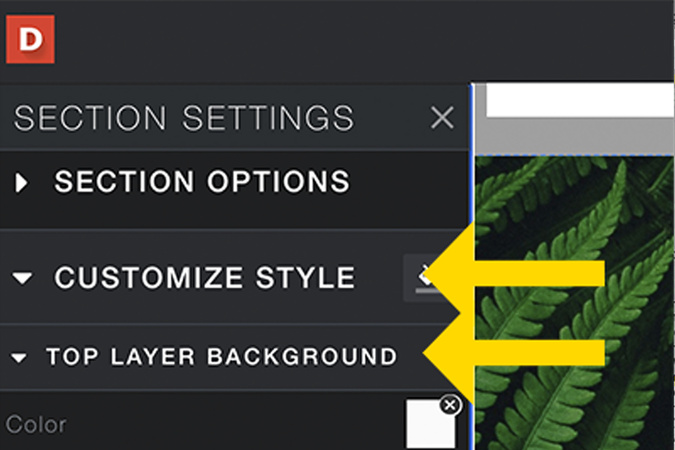
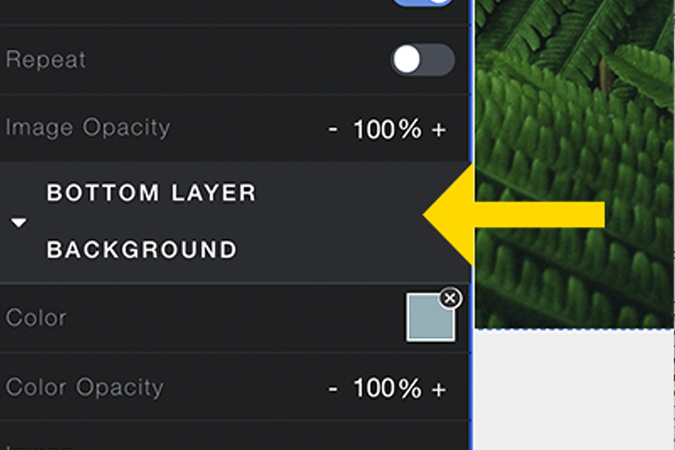
Step 3
On the left of your screen, you will see Customize Style, Top Layer Background, and Bottom Layer Background. You cannot customize text boxes here. For both the Top and Bottom layer backgrounds, you will be able to change the color/color opacity and/or add an image/change the image opacity

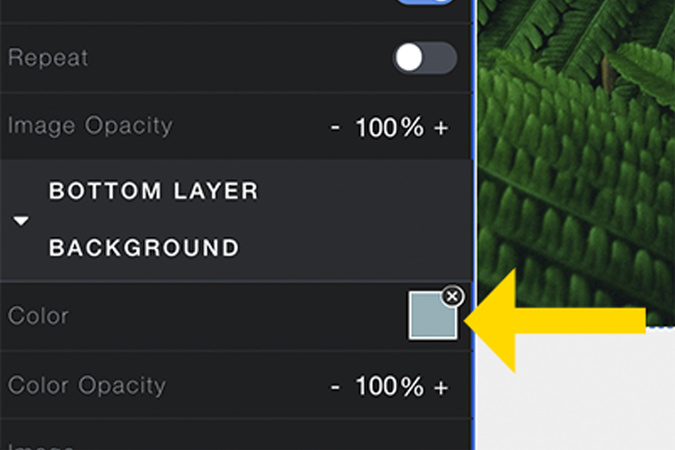
Color
Step 1
To change the background color of your top or bottom layer, click the square to the right of the word "color".

Step 2
Here, you can click on any of the colors provided to you or enter your own hex code. You can find a wide variety of additional hex color codes and color palettes in either Canva or Adobe.

Step 3
If you are using a custom hex code from Adobe or Canva, copy your hex code and paste it next to the hash sign. Make sure to delete any hashtags you paste; otherwise, the color will not work. If you do not see your color right away, edit the color opacity around, and it should show up.
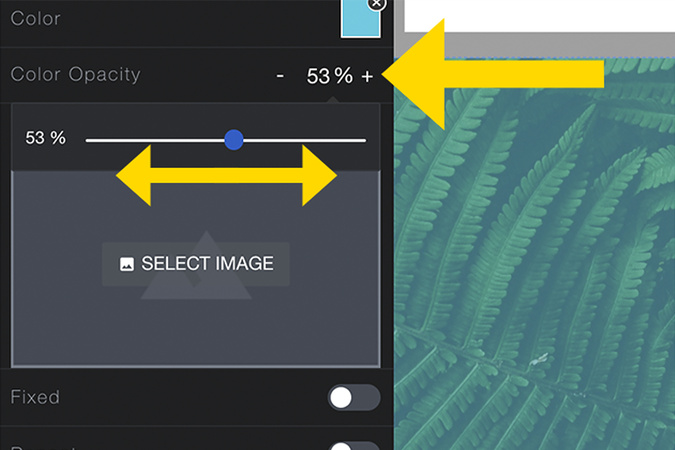
Step 4
Opacity allows you to edit how much color shows up on the layer. To edit the color opacity you can either click on the plus and minus signs or click on the percentage and move the slider to your desired opacity.

Photo
Step 1
If you decide to upload a photo/image, there are two different ways it can be displayed: Fixed and Repeat. When the fix is applied, your photo will remain still when scrolling.
When the repeat is applied, your photo will repeat itself as you scroll down your page.
Extra!
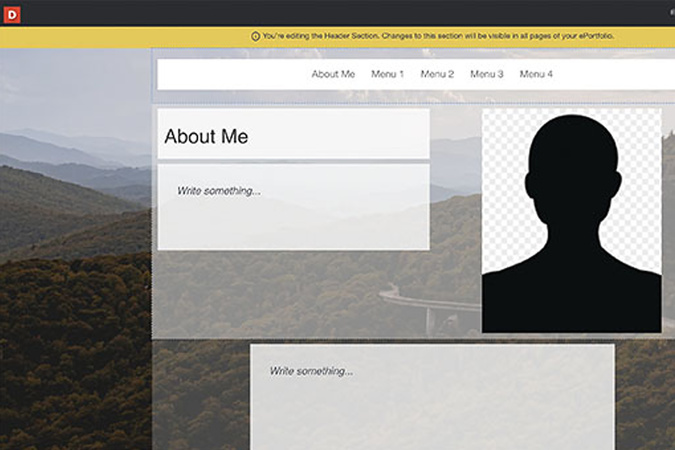
If you would like a seamless background with your header section, visit the seamless background tutorial.

Digication Login
Creating a well designed portfolio is a must. Use Digication to log in to Aportfolio and manage your ePortfolio. Alumni may sign in at appstate.digication.com.